7 NotebookLM Productivity Tips for Meetings and Projects
Turn meeting transcripts and project docs into verified action items, decision logs, and handoffs with seven NotebookLM workflows and prompts.
Start with one project, its current brief, and your latest meeting notes. Ask NotebookLM to extract decisions, action items, and open questions. Open the citations for anything you plan to assign or share, then copy the verified items into your team's tracker.
Google renamed NotebookLM to Gemini Notebook in July 2026. These tips use the desktop workflow for the same standalone product. Google's naming announcement
1. Give each notebook a job
A notebook called “Q4 product launch” gives you a better starting point than one called “Work.” Start with the current project brief, the latest notes, and the document where approvals are recorded. Add older material when a question calls for it. If a kickoff deck is there for historical context, name it something like “September kickoff draft” so you can recognize it in citations.
In the Sources panel, select the documents relevant to the question you're asking. For “What did we commit to?” start with the decision log and the approved brief. Bring the kickoff deck back into scope when you want to explain how the plan changed. Google's guide to adding and selecting sources
2. Extract meeting actions in a format you can use
Select the meeting transcript and any notes taken during the call. Ask for a table you can check row by row. A transcript captures suggestions, estimates, and offhand remarks alongside real commitments, so tell the model how to treat each one.
List explicit commitments from this meeting. Make a table with Action, Owner, Due date, and Source citation. Write “Unassigned” or “No date stated” when the source leaves either field open. List suggestions and unresolved questions separately.
In an illustrative launch meeting, “Maya can probably review the draft on Thursday” belongs under open questions. “I'll review the draft by Thursday,” said by Maya, is an action with an owner and a deadline. Check the original wording and speaker attribution before putting the task on her list. Gemini Notebook's inline citations can take you to the passage in context. Google's guide to chat and citations
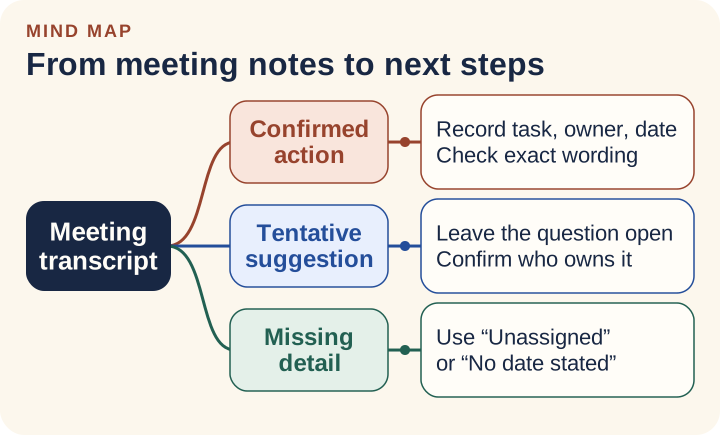
Put confirmed commitments in the task tracker. Keep open questions in the meeting notes until someone resolves them.
3. Compare versions before you send a status update
Select last week's update and the current version of your project brief. Ask for changes by topic, with a citation on each side. Use dates in source names so you can tell which version each claim came from.
Compare the two selected documents on scope, milestones, owners, and risks. For each difference, show the earlier wording, the current wording, and a citation for both. Mark details missing from one version as “Omitted.” Flag contradictions whose resolution is unclear.
Suppose the earlier update says October 5 and the new brief says October 12. Your next step is to check which document governs the release and whether the later date was approved. A clean comparison helps you find the conflict. The approval record tells you what date to communicate.
4. Verify the citations that affect a decision
Start with numbers, deadlines, approvals, and names. Click each relevant citation and read the sentences around it. Check that the passage supports the whole claim. “Friday, if QA signs off” still has a condition attached. If the answer dropped that condition, put it back before sharing.
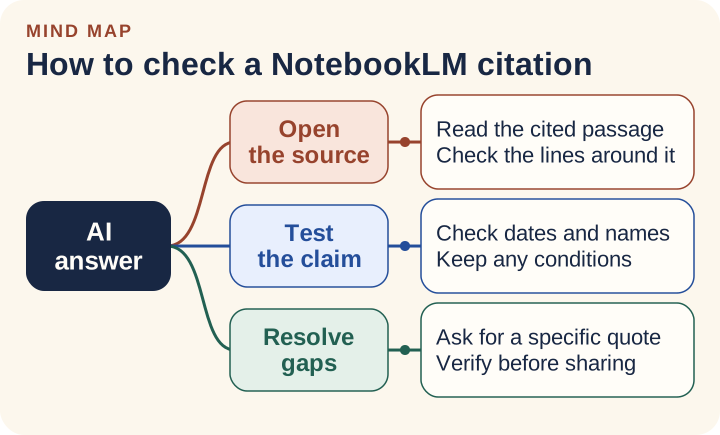
Read around the highlighted passage for conditions that change the answer.
When the cited text feels too broad, ask a narrower follow-up.
Which passage explicitly confirms that this date was approved? Identify who approved it and any conditions attached. If approval is unclear in the selected sources, say what evidence is missing.
After checking the key claims, use Save to note to keep a useful chat response in the notebook. Google says the saved response preserves its formatting and clickable citations, which makes it easier to revisit during the next review. Google's guide to saving chat responses
5. Check source freshness before a recurring review
If your weekly status lives in a Google Doc, import it from Drive. Google says supported Drive imports update automatically and can also be synced manually from the source viewer. Before the meeting, open the source and look for the newest status line or date. If you're using a PDF you uploaded last week, import the new export and deselect the old one when asking about current status.
Google's Drive import leaves out comments and footnotes. If an important approval is buried in a comment, move the confirmed decision into the body of the project document so it can be included in the next review. Google's Drive import and sync documentation
6. Use Audio Overview to prepare questions before a meeting
An Audio Overview works well when you need the shape of a discussion before opening the source documents. In Studio, choose Audio Overview and give it a narrow brief. For a design review, ask it to focus on the trade-offs under discussion, the risks that are still open, and the questions a reviewer should bring.
Write down the two or three points you want to ask about. Back at your desk, look them up in Chat and check the cited passages before repeating a detail. Audio Overviews are generated and can contain inaccuracies, so the documents remain your reference for exact figures and decisions. Google's Audio Overview guide
7. Turn the project history into a handoff
Select the approved brief, decision log, and current status. Ask for a handoff written for a teammate who starts tomorrow and needs to know what to do first.
Write a one-page handoff. Include the current goal, what has already been decided, the next three actions, and unresolved blockers. Give each action an owner only when a source names one. Cite decisions and flag anything the incoming teammate should confirm.
Check every blocker and owner, then paste the verified handoff into the project document where the team will maintain it. Include links to the original decision records the recipient can access. That gives the new owner somewhere to check the reasoning when a deadline moves or a question comes up again.
For your next meeting, try the smallest version of this workflow. Import the notes and brief, extract the actions, and check the citations before copying the tasks into your tracker.