Free AI Image Editor: Edit Photos with Text Prompts
Upload a photo, describe the change, and imov's AI photo editor does the rest. Remove objects, swap backgrounds, retouch portraits or restyle any picture online in seconds. It's an AI picture editor that works the way you talk.
Examples
AI Photo Editing Prompts For You To Try
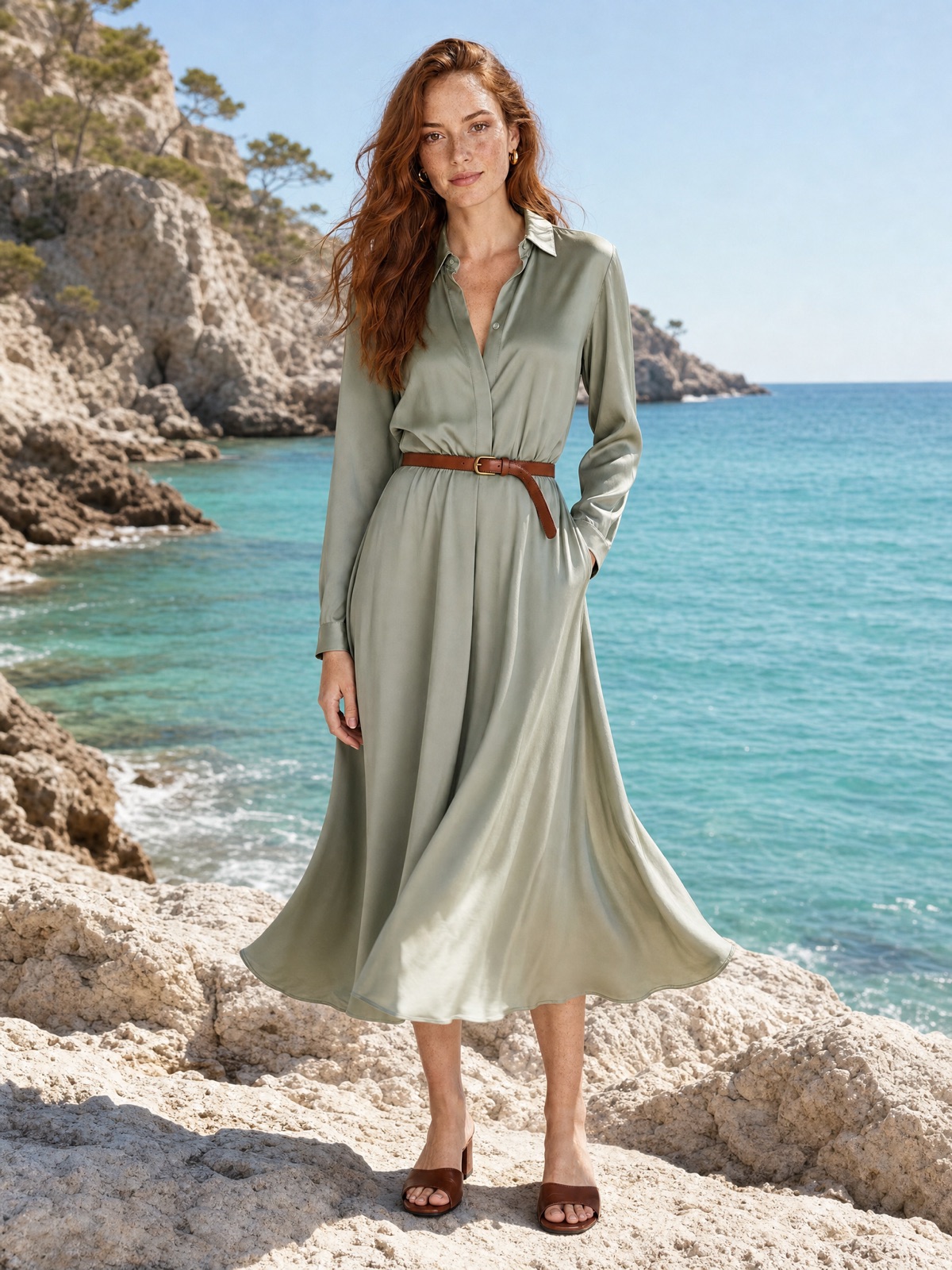
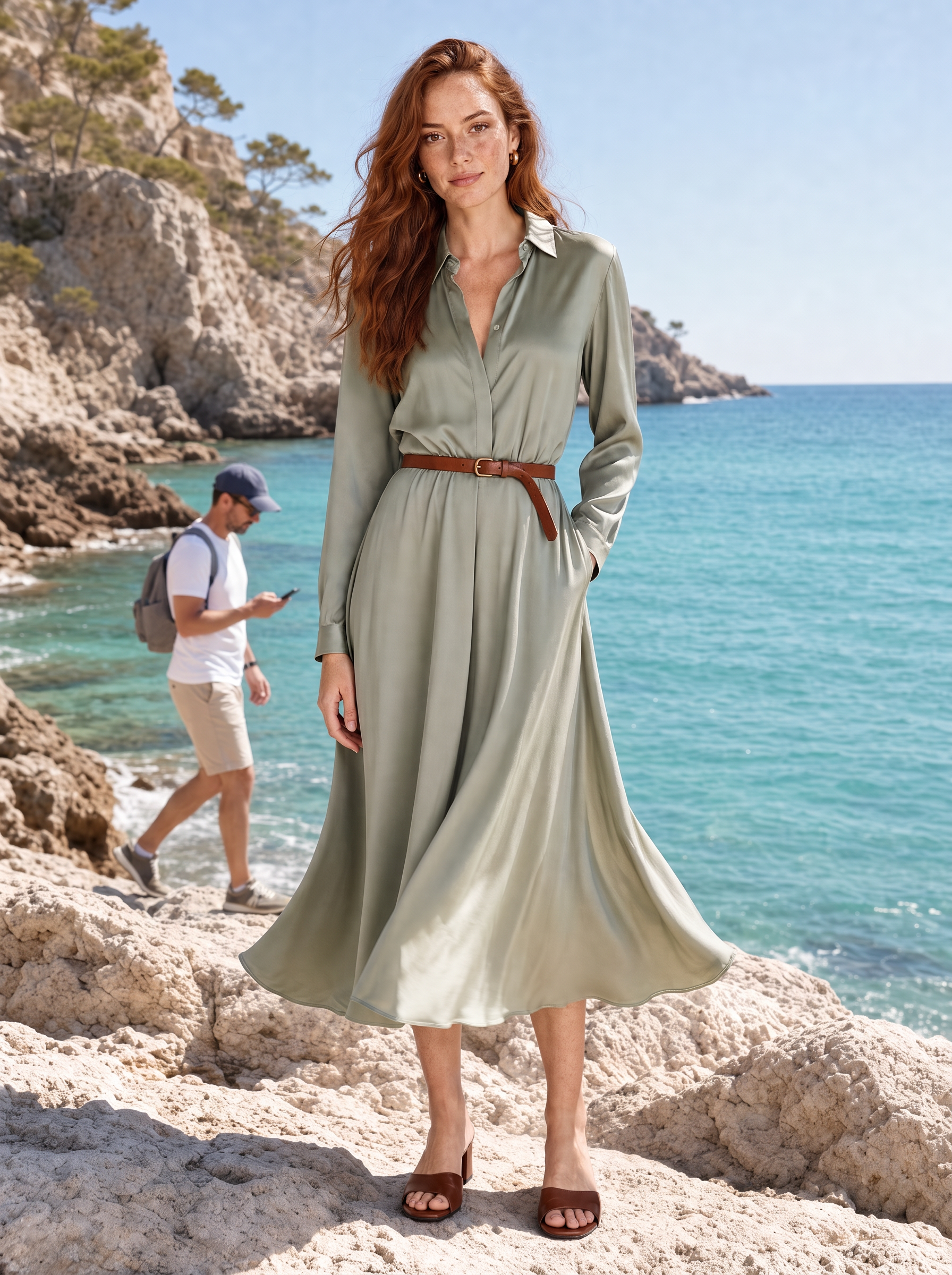 BeforeAfter
Remove a person from the background
Clean up travel shots in one prompt without cropping out the view you came for.
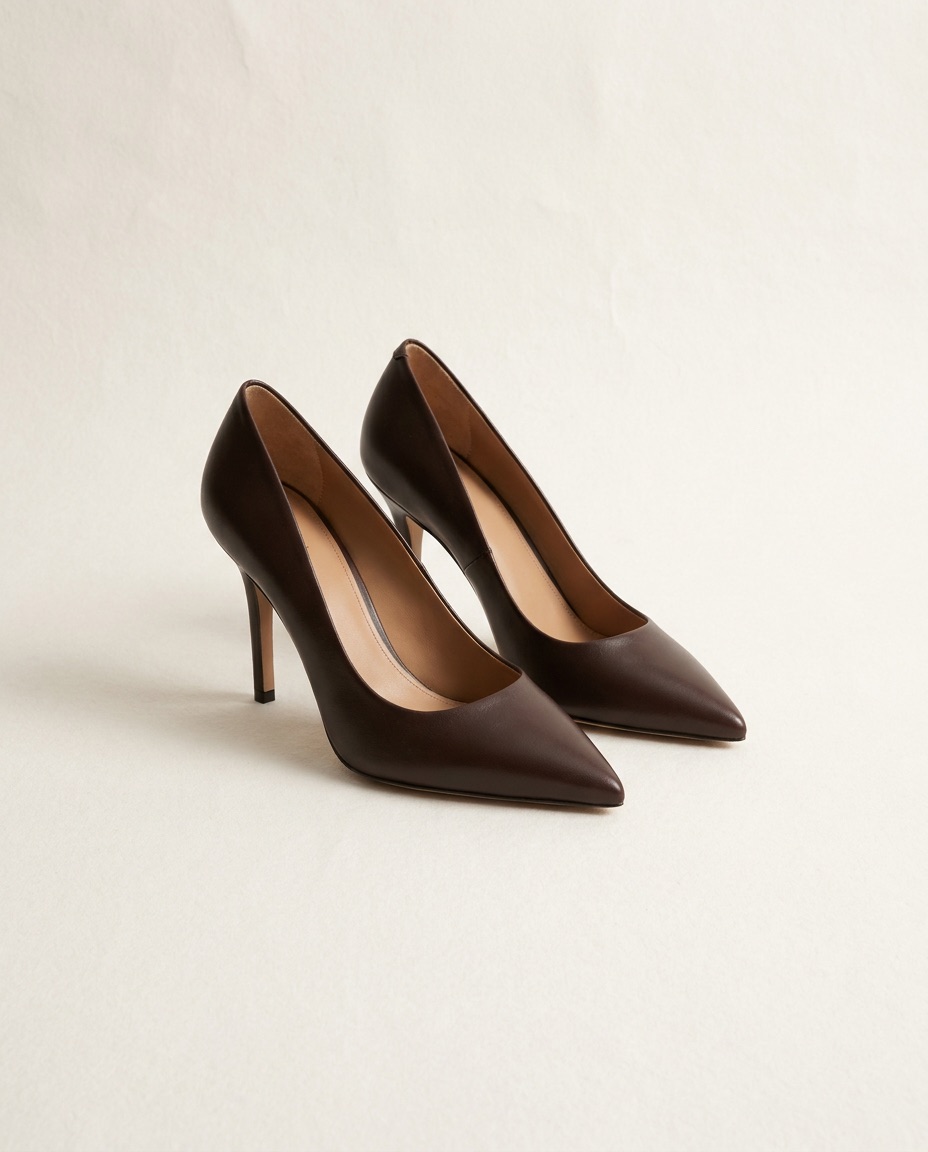
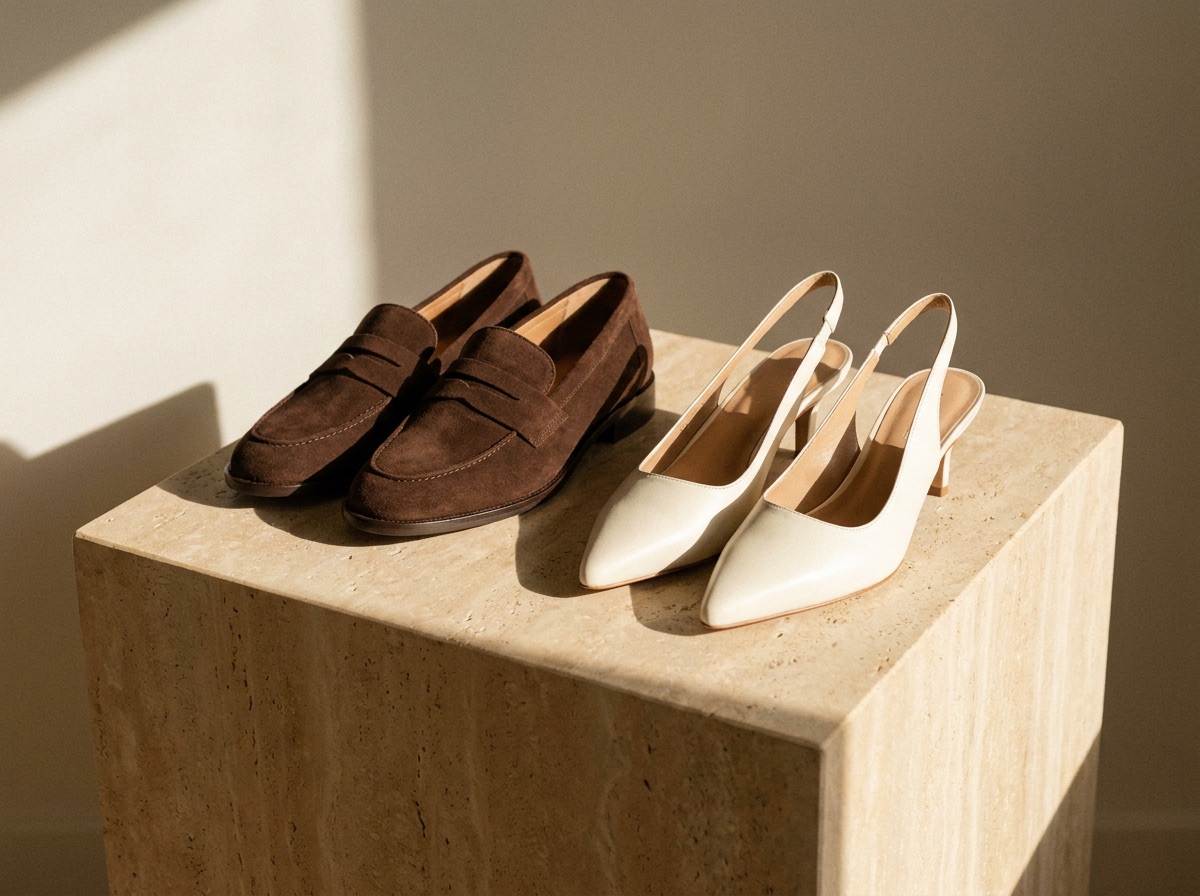 BeforeAfter
Put a product on a new background
Turn a phone snap into a usable product photo.
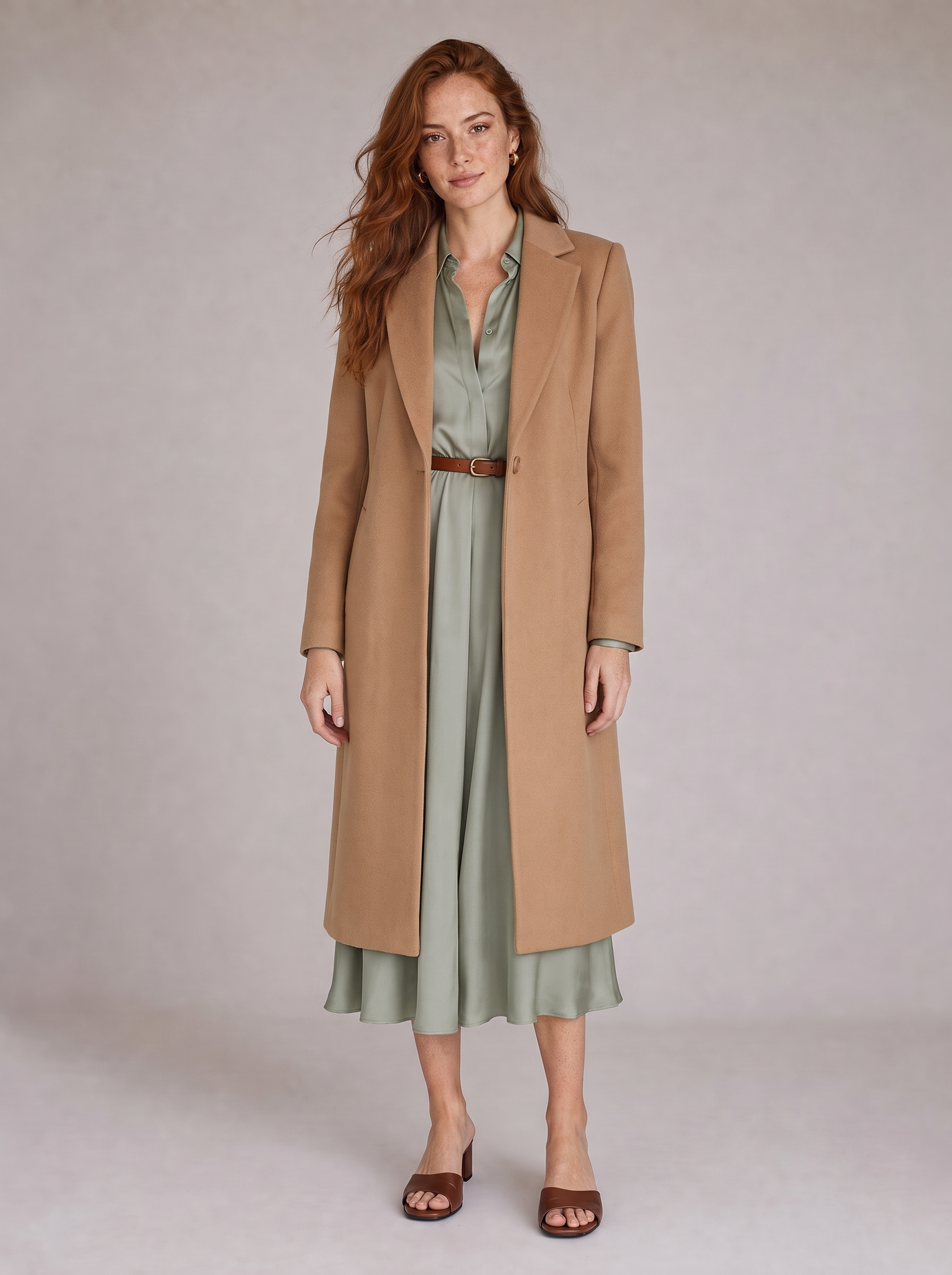
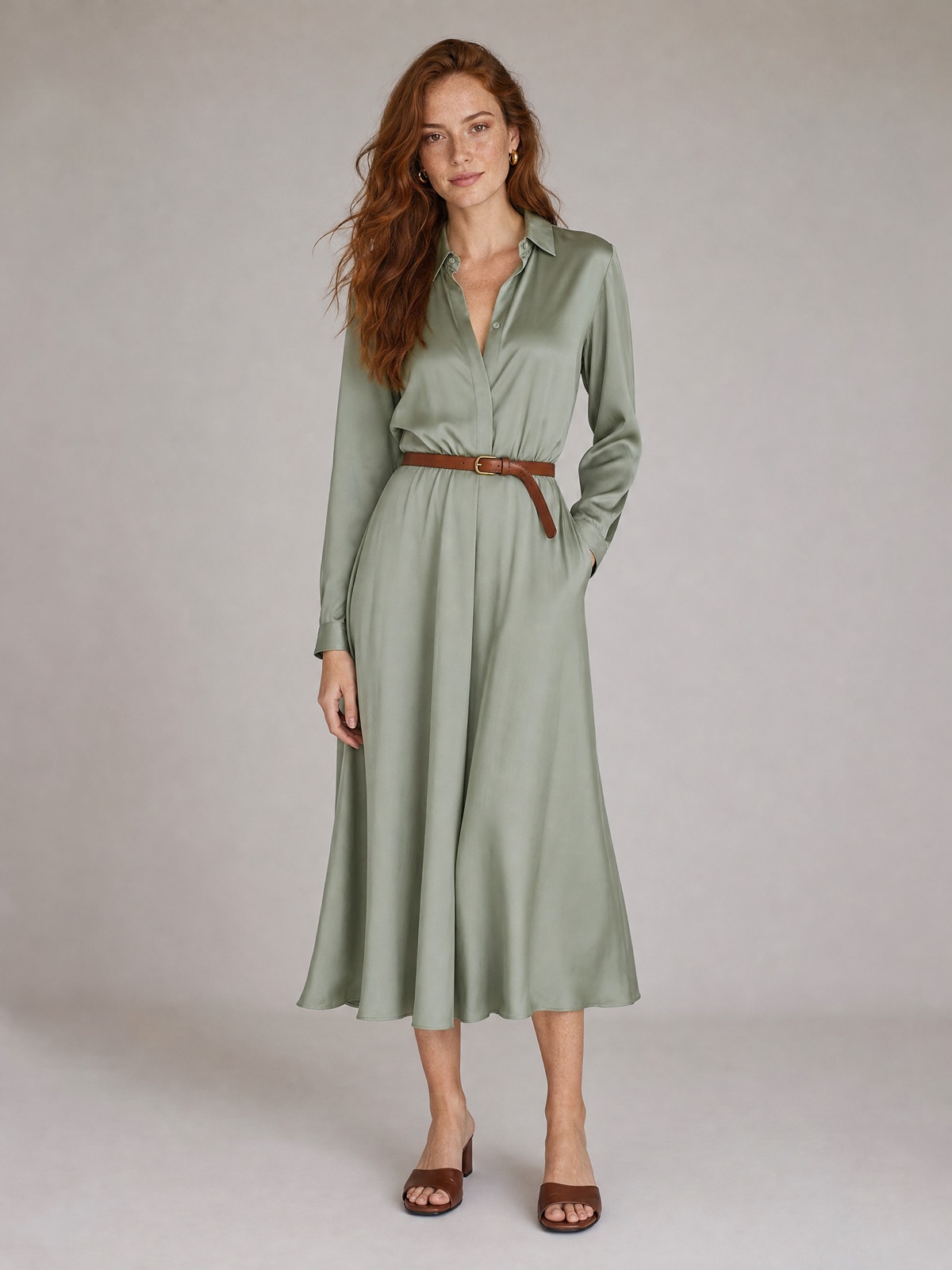
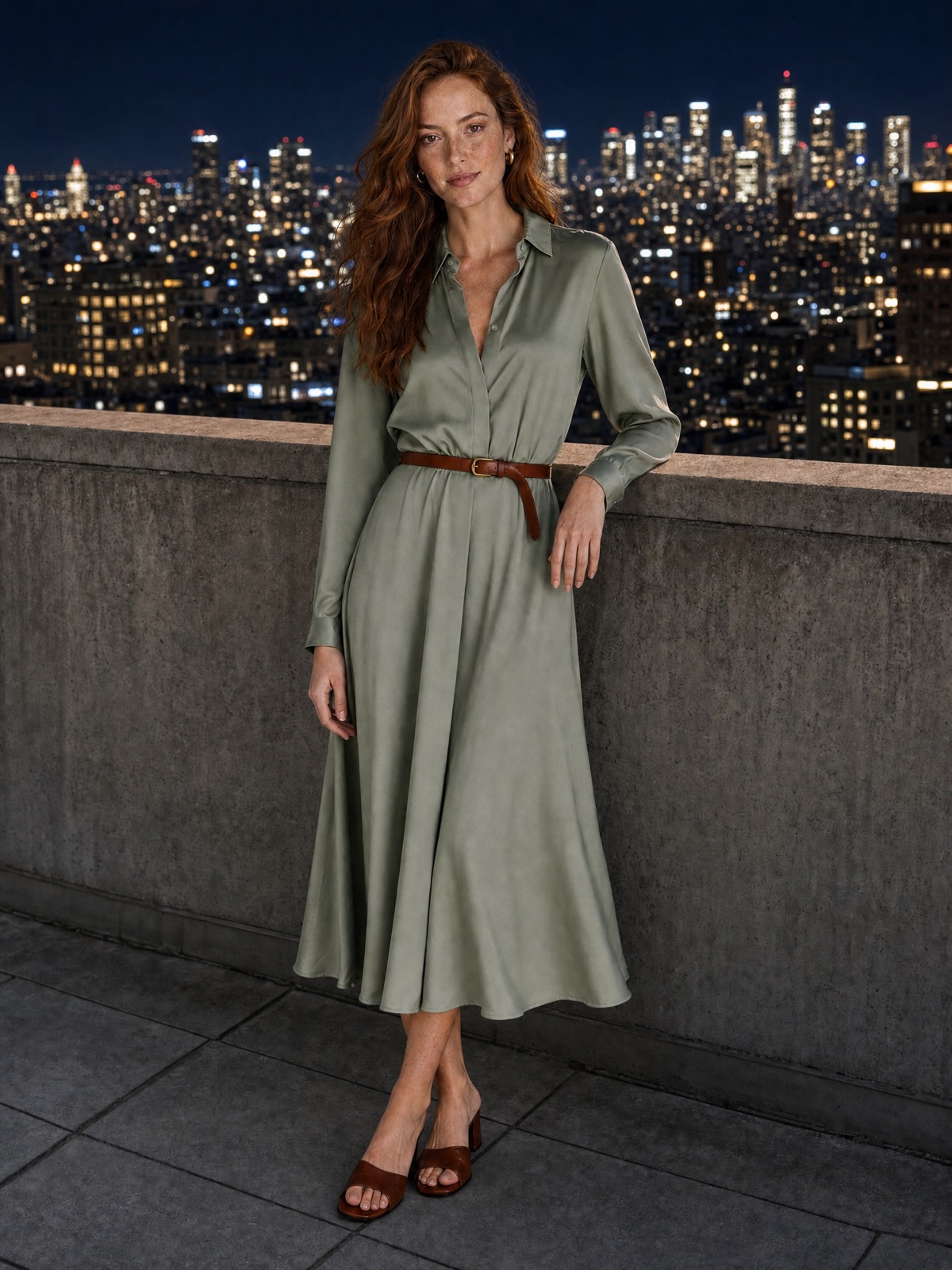
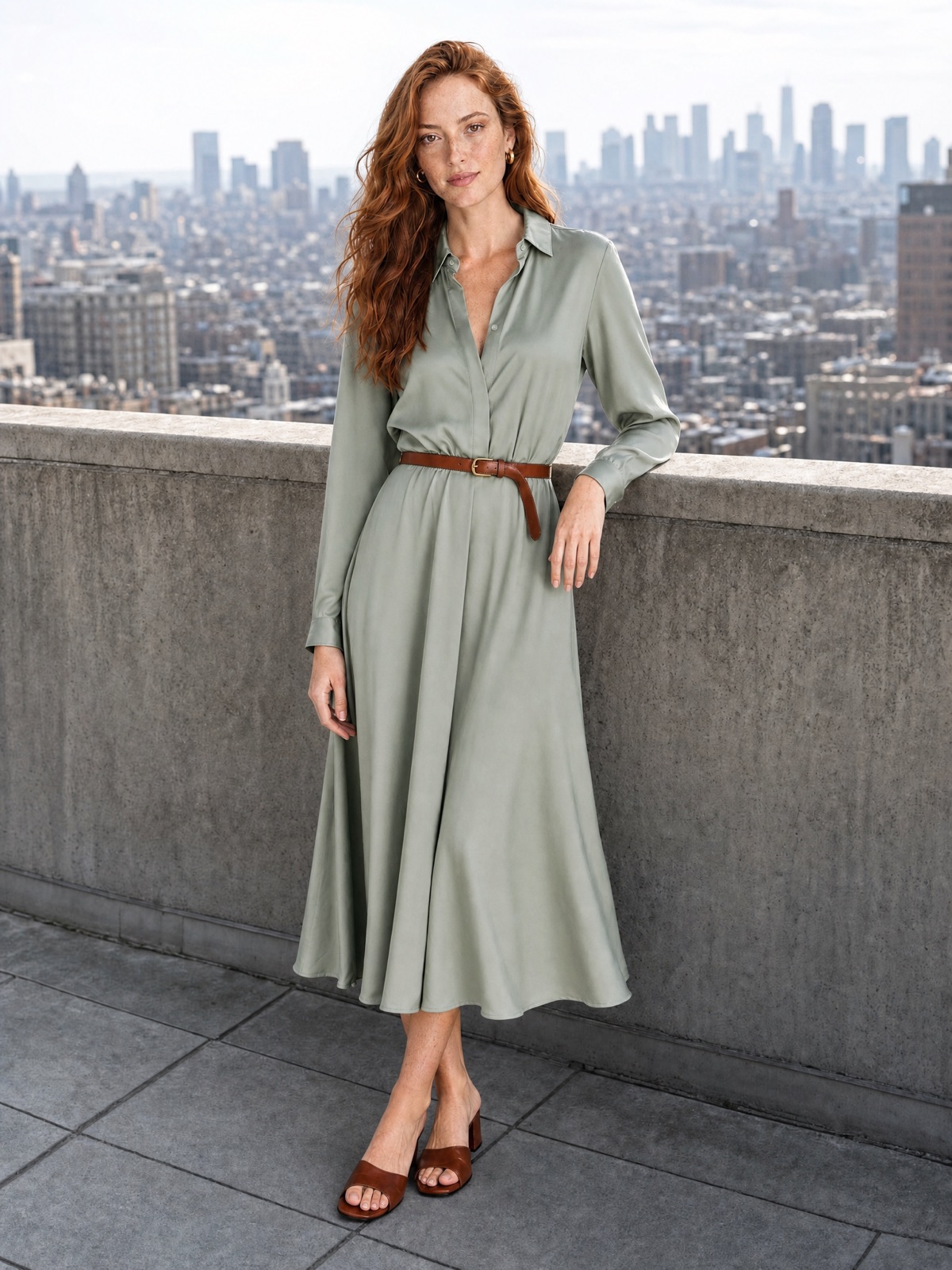 BeforeAfter
Fix lighting and colour
Rescue indoor and low-light photos without changing the composition you shot.
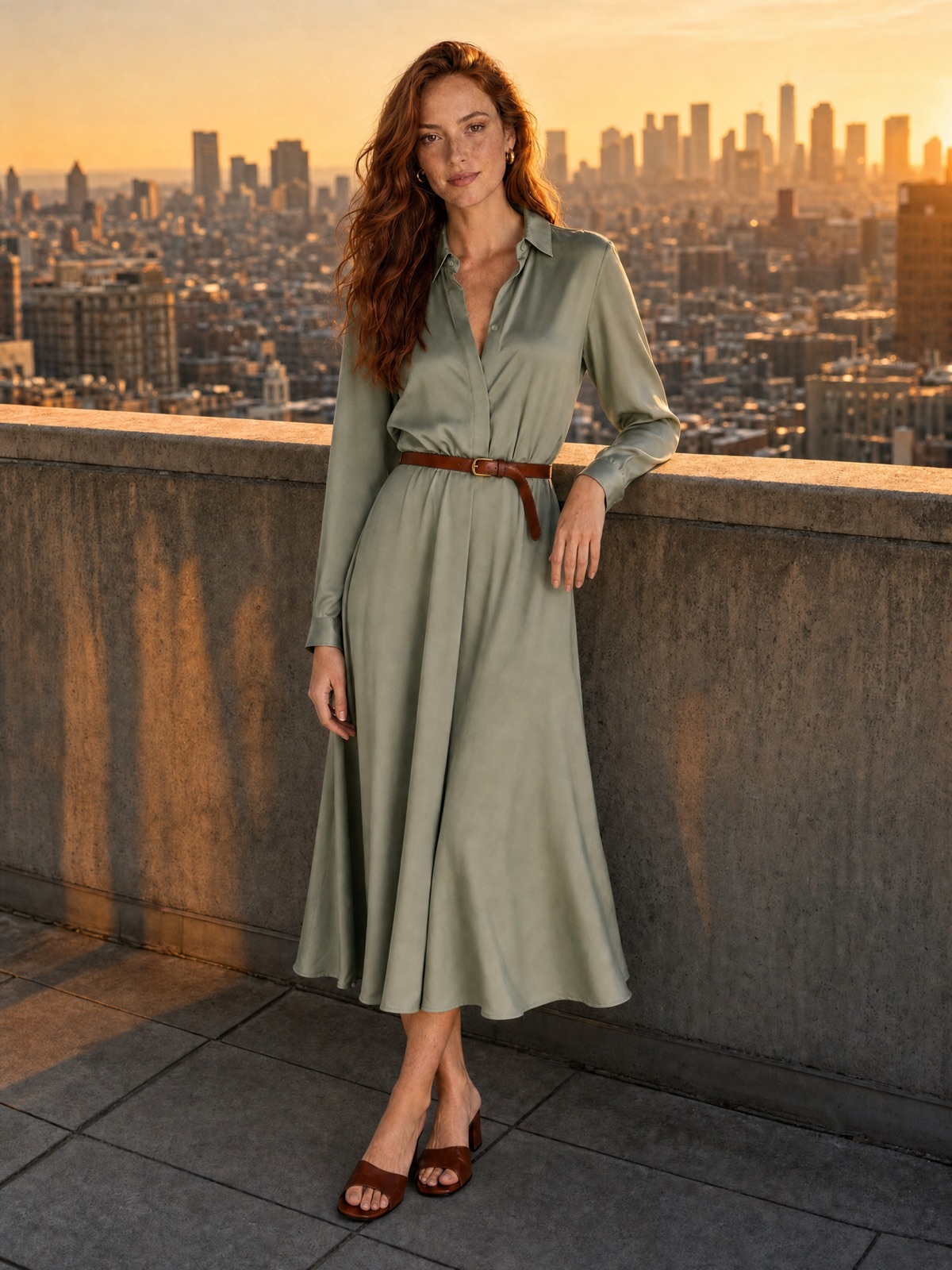
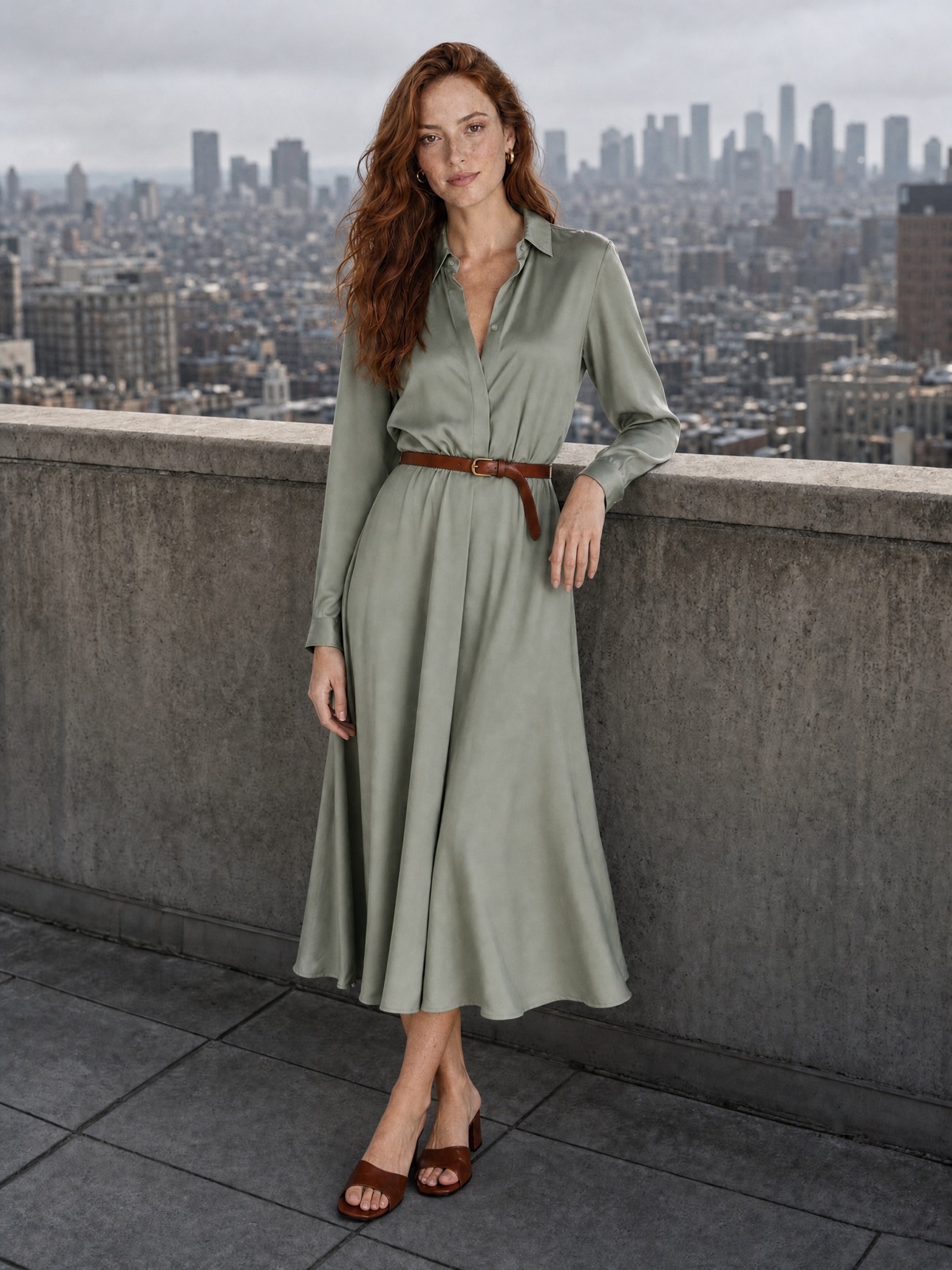 BeforeAfter
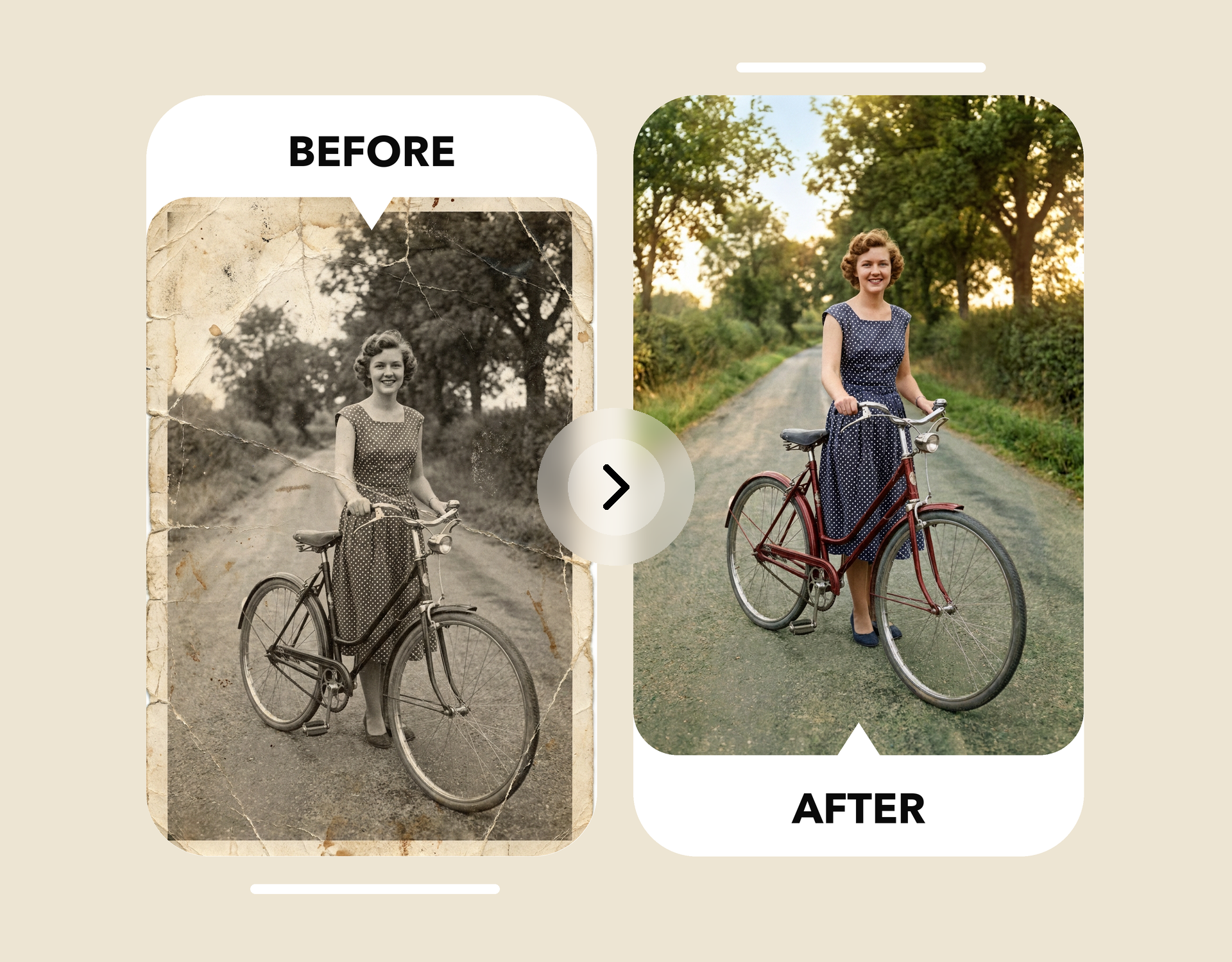
Restore an old photo
Bring family photos back to life. Go deeper with AI photo restoration.
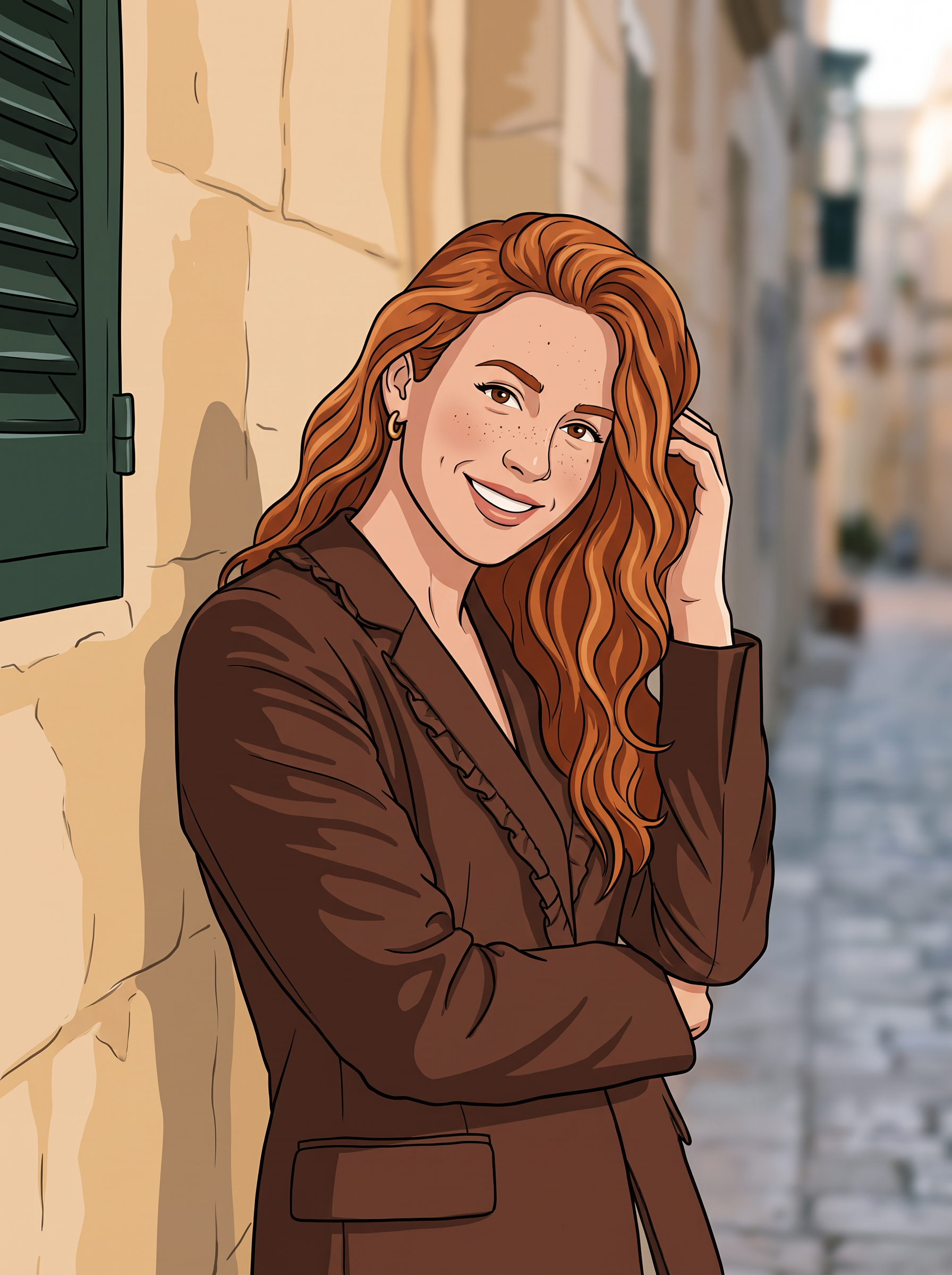
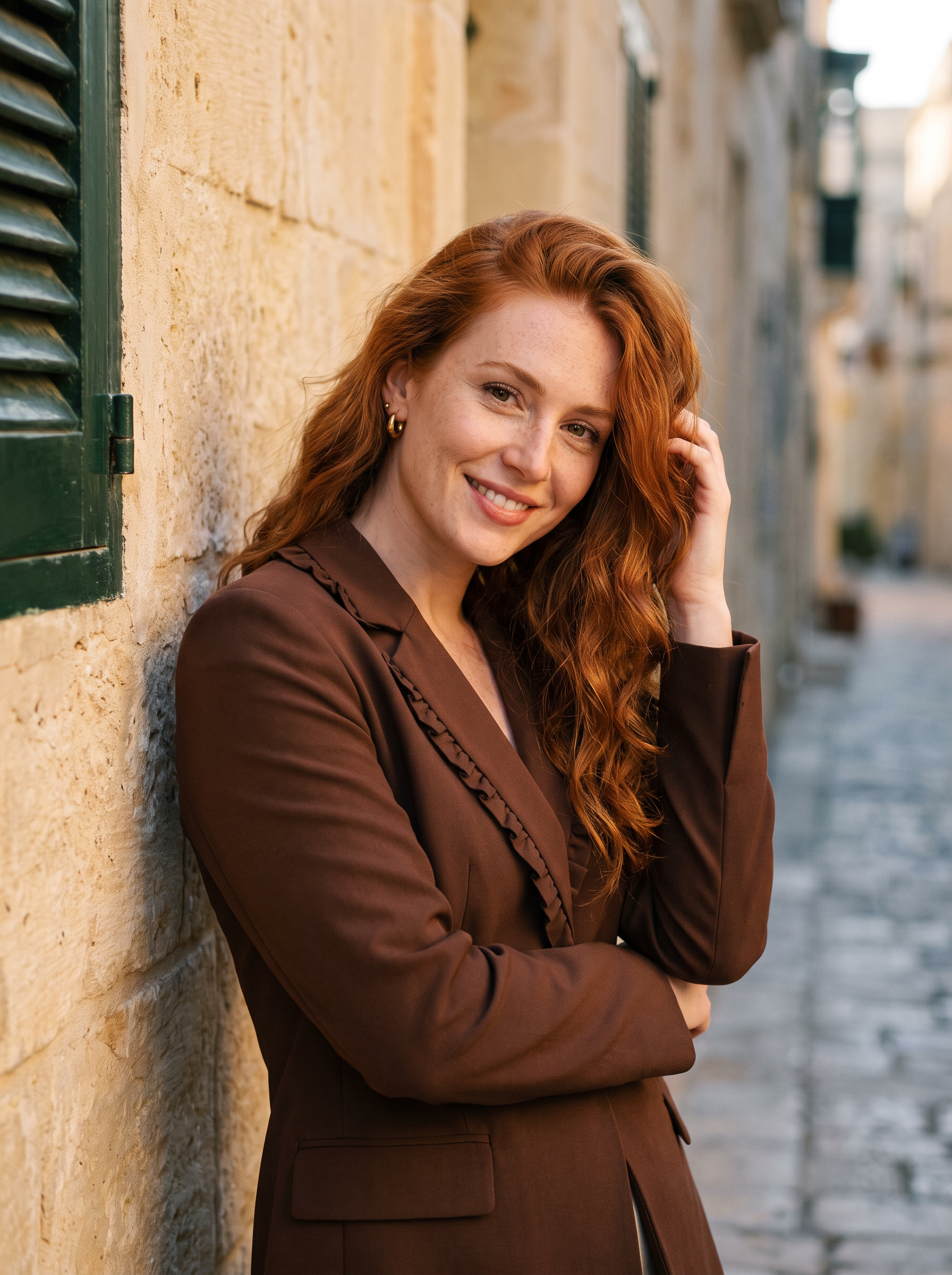
How to Edit Photos with AI in 3 Steps
Upload your photo
Drop in a JPG, PNG or WEBP up to 30MB. A sharp, well-lit image gives the AI more detail to work with, so the edit looks more natural.
See moreDescribe the edit in a prompt
Tell the AI photo editor what to change in plain words. A few tips get better results: Be specific. "Replace the grey sky with a clear sunset" beats "make it nicer". Say what must stay the same, like "keep her face and pose unchanged", so the parts you like are protected. Make one change per prompt and stack edits one at a time. If the first result is close, refine the prompt and run it again.
See moreGenerate and download
Click Generate and your edited picture is ready in seconds. Download it, or keep editing until it looks right.
See moreUse Cases
What You Can Do with the imov AI Image Editor
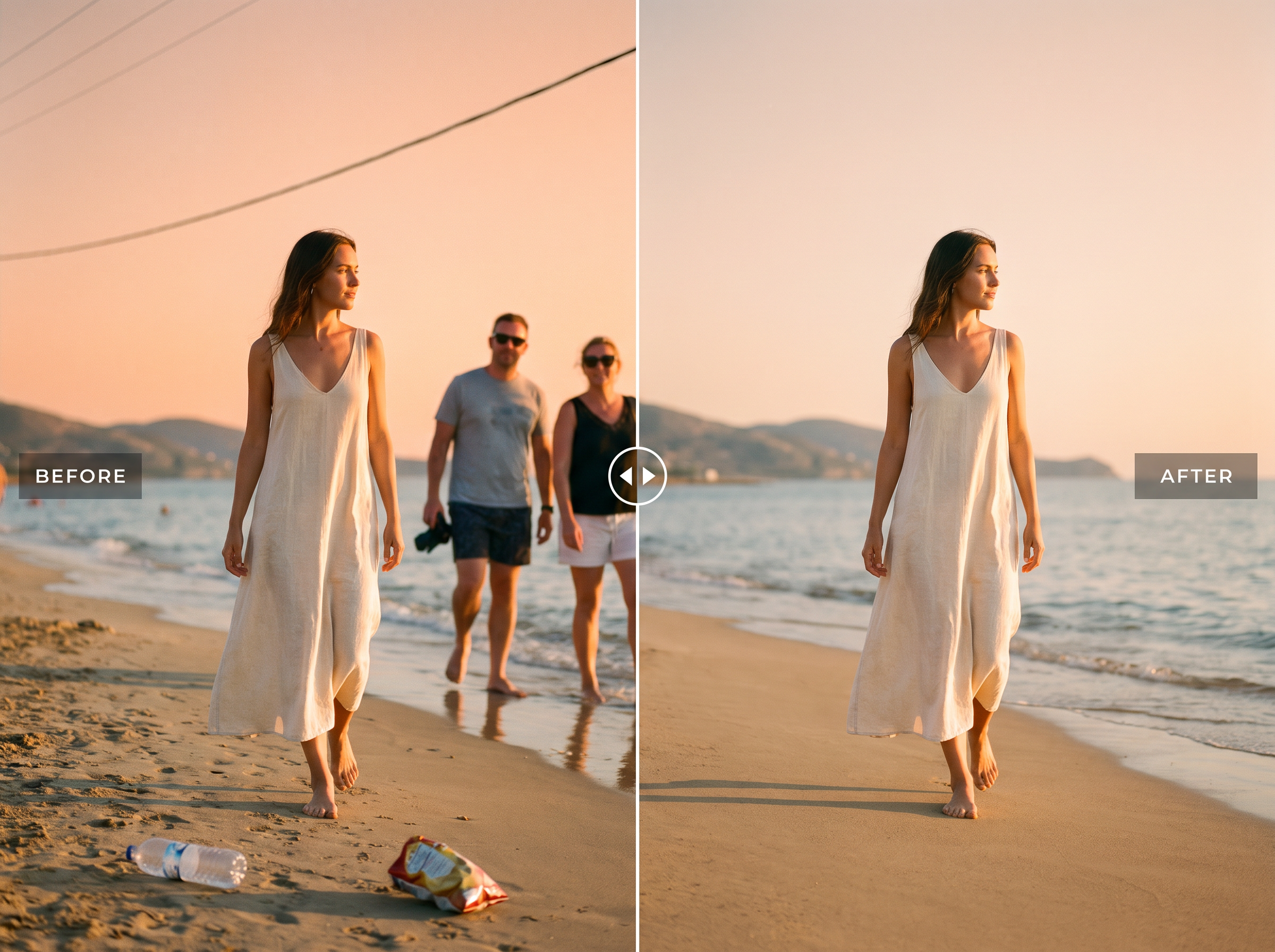
Object Removal
Remove unwanted objects
Photobombers, power lines, trash on the beach. Name what should go and the AI fills the gap with background that matches the scene. For quick one-click cleanups, use the AI object remover and keep your original photo framing fully intact.
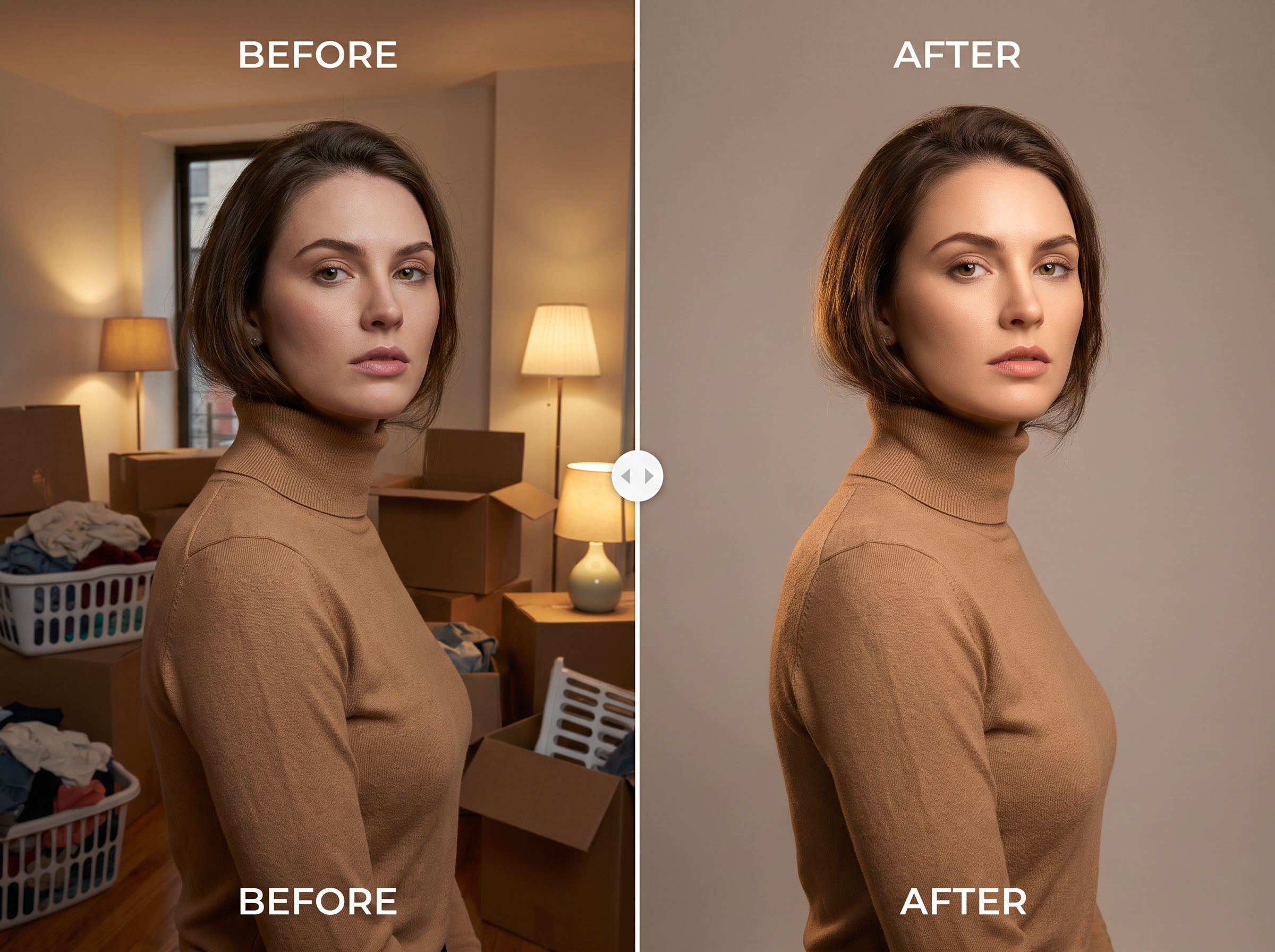
Backgrounds
Change or replace backgrounds
Move a portrait from a cluttered room to a clean studio wall, or put a product on a beach. Describe the new setting and the lighting adjusts to fit. Need a cutout? Use the background remover or the AI background changer.
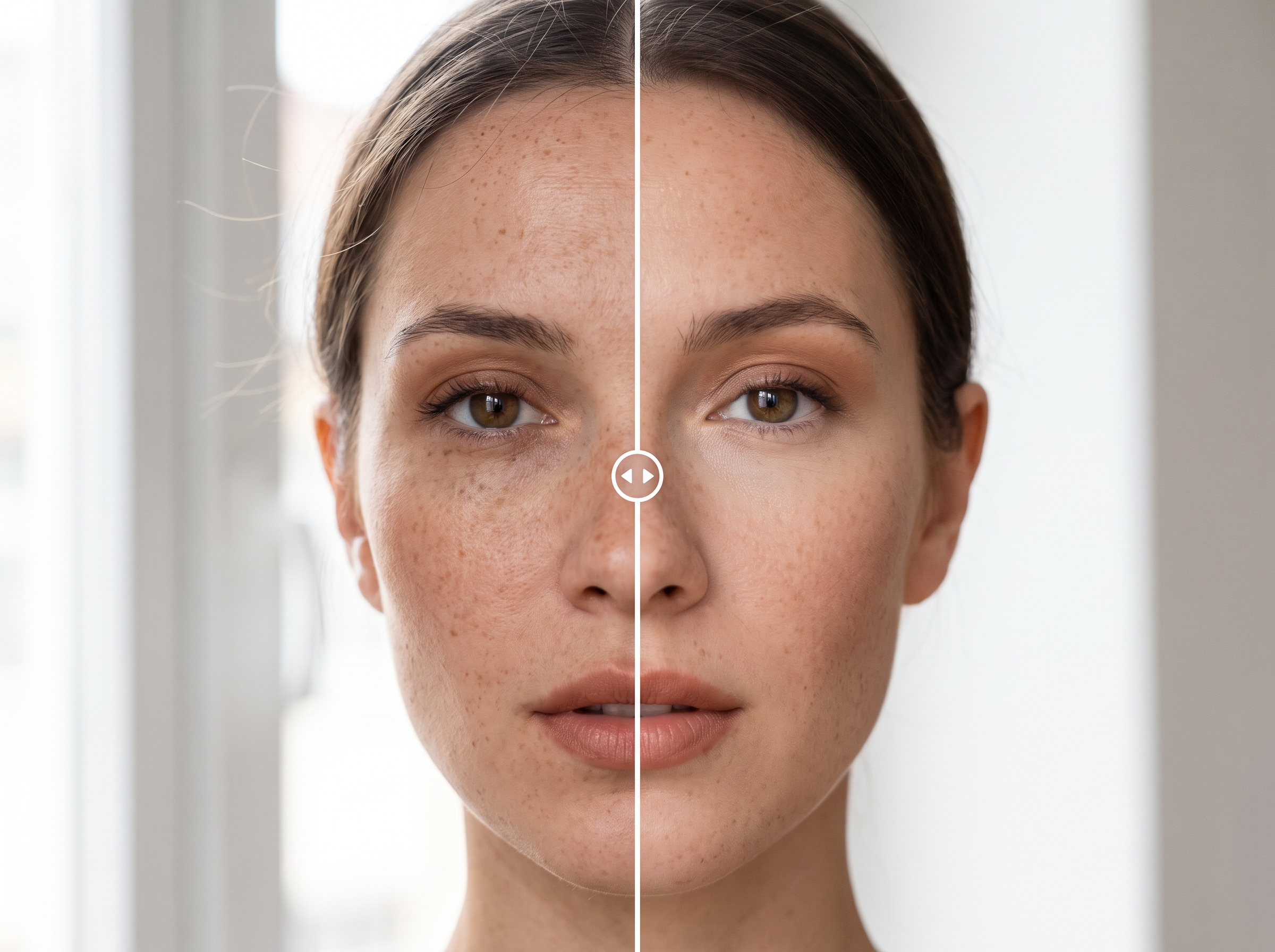
Portraits
Retouch portraits
Smooth skin, fix stray hairs, brighten eyes or soften harsh shadows in seconds. Ask for subtle changes and say clearly what to keep, so the person still looks like themselves. It's quick, natural retouching without learning masks, brushes or layers.
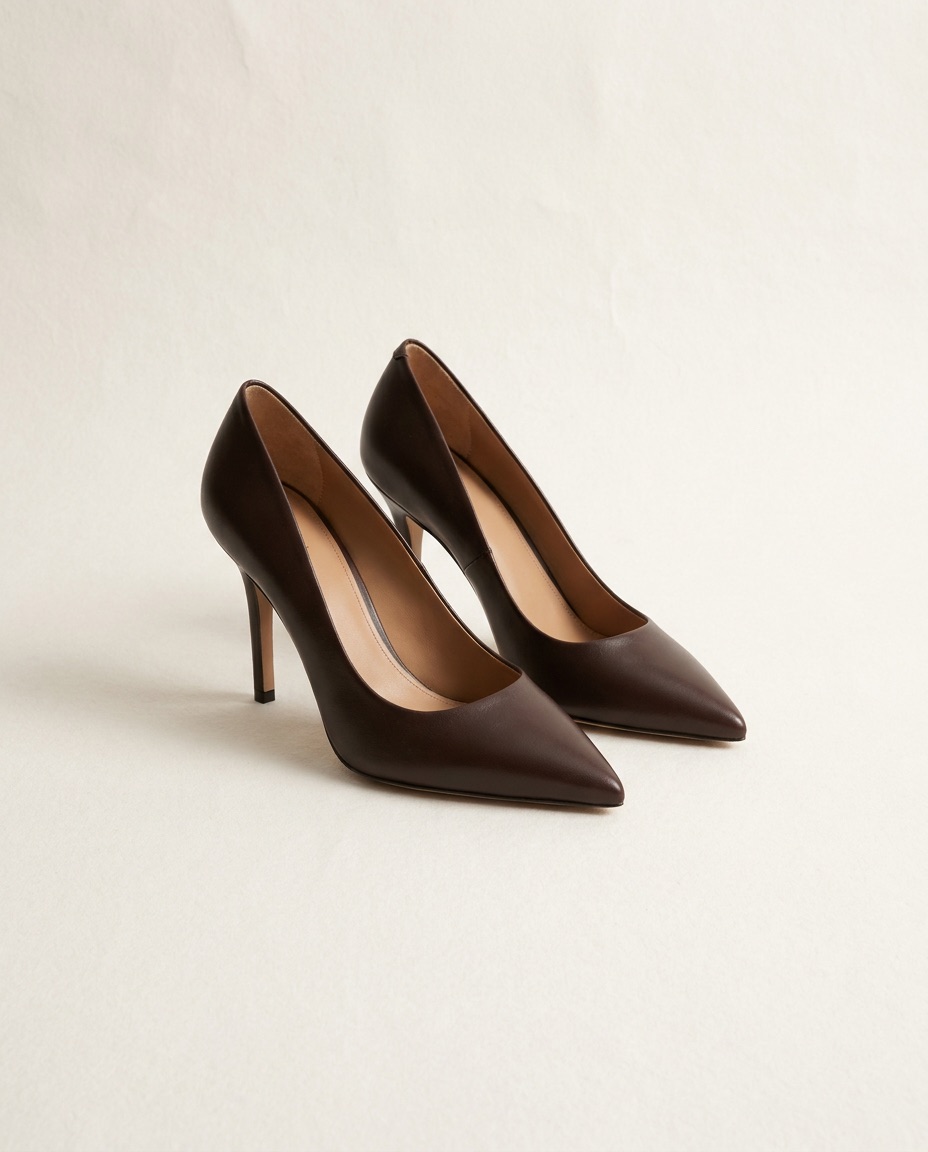
E-commerce
Create e-commerce product photos
Shoot on your phone, then edit photo with AI into a clean listing image. Change the surface, add props or match your brand colours without booking a studio. Every product in your catalogue can share the same look, lighting and background.
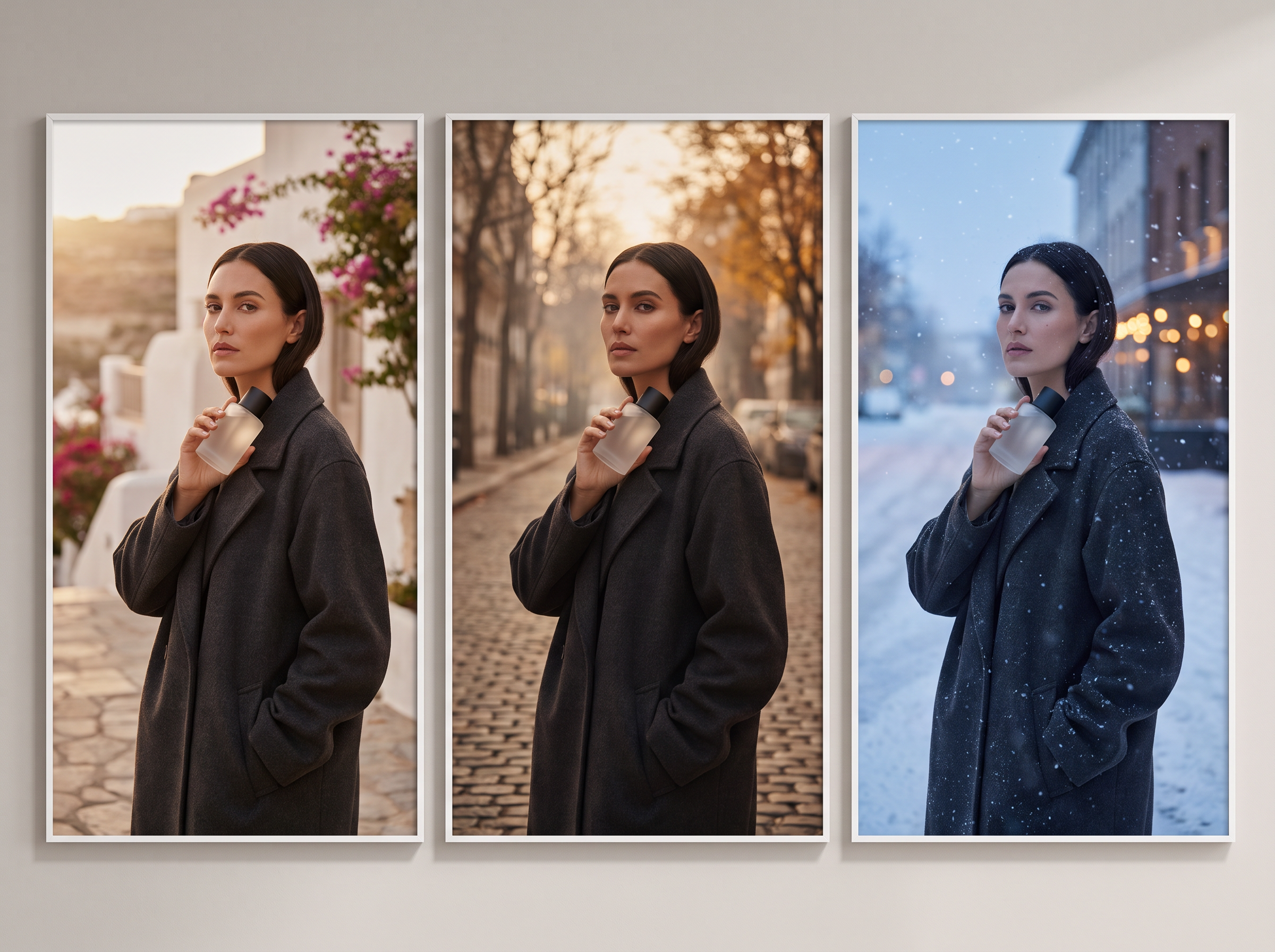
Social & Ads
Make social media and ad creatives
Add a product to someone's hand, change the season or restyle a scene for a new campaign. One base photo becomes several on-brand variations in minutes. Test different angles and backdrops for ads before you spend a cent on media.
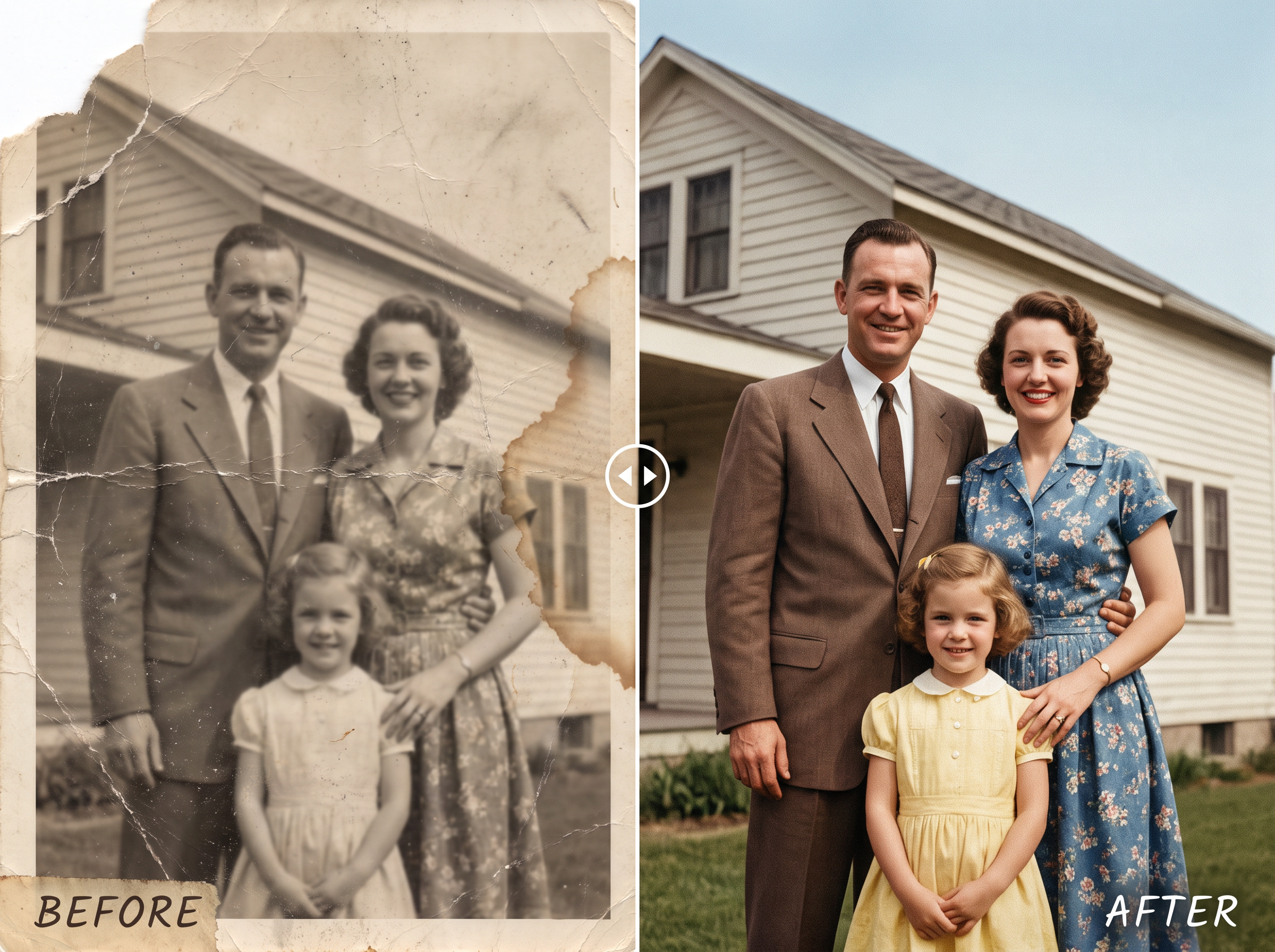
Restoration
Restore and enhance old photos
Repair scratches, fading and blur in old family photos, then add natural colour. For dedicated repair, use AI photo restoration. To add resolution afterwards, run the result through the AI image upscaler and print it at full size for framing.
Styles
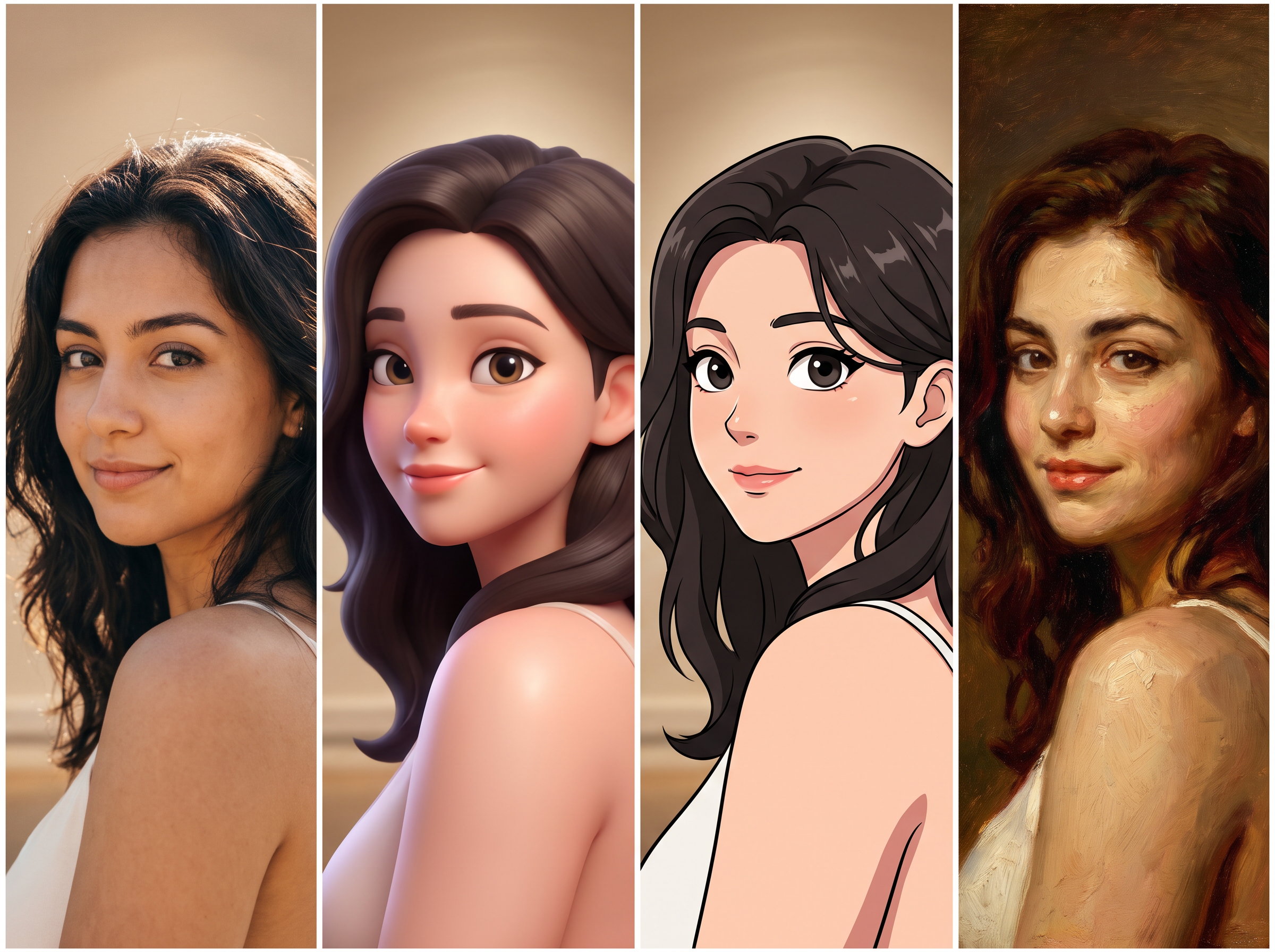
Change the style
Turn a selfie into a cartoon, anime frame, oil painting or 3D render while keeping the original pose. The AI cartoon generator has ready-made styles if you'd rather not write a prompt. Try a few and keep the best one.
Add & Swap
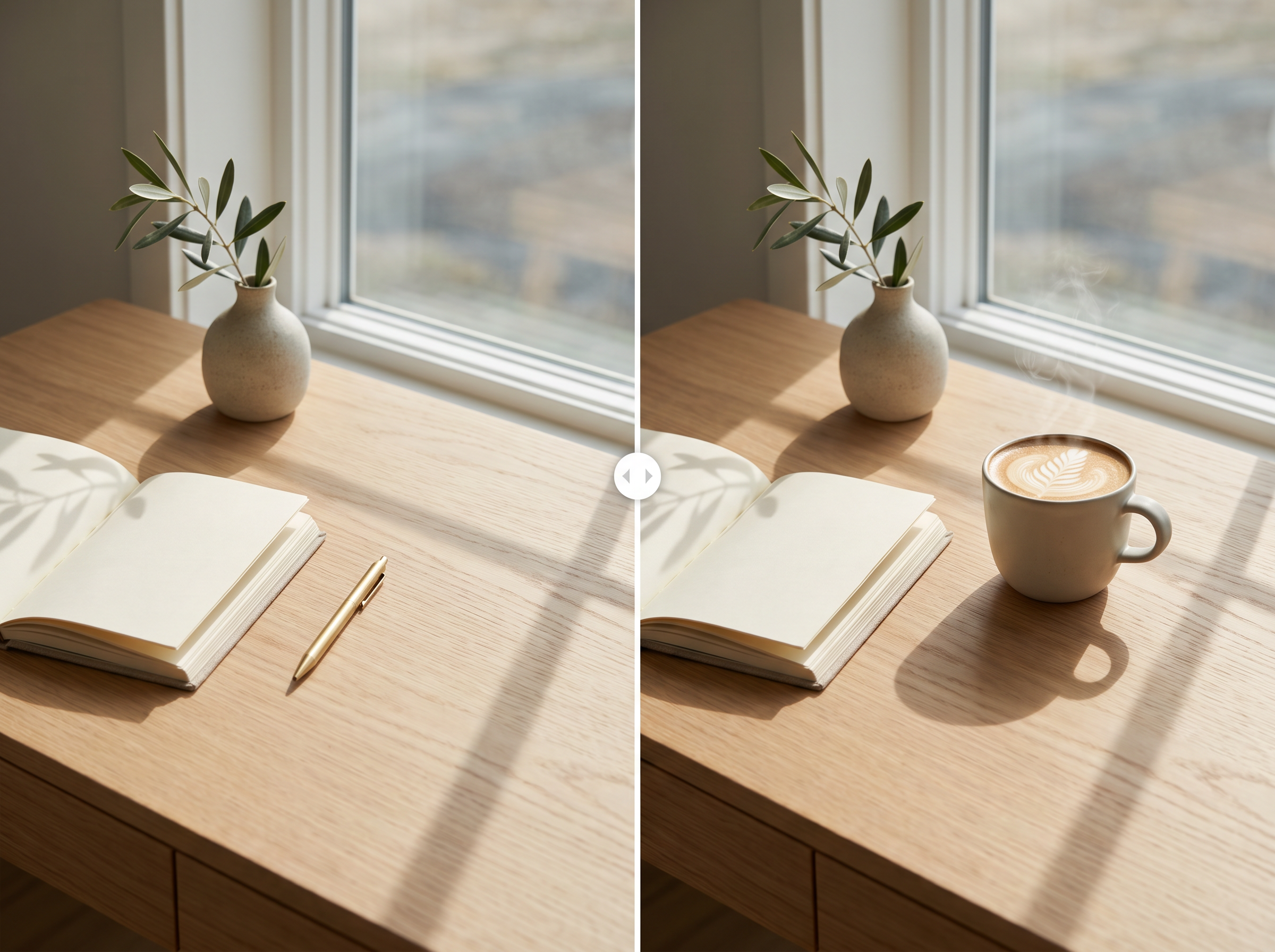
Add or swap objects
Put a coffee cup on the desk, a perfume bottle in a hand or a hat on a dog. Describe the object, where it goes and its size. The AI matches lighting and shadows so it looks like it belongs.
Models
Edit Images with Leading AI Models
GPT Image 2.5
Precise images and conversational edits from OpenAI.
Nanobanana 2.1
Fast, consistent image generation and editing from Google.
Ideogram 4.5
Images with clean, readable text and typography.
xAI Grok 1.5
Quick, expressive visuals from simple prompts.
Seedream 4.5
High-res images with strong multi-reference editing.
Flux 3
Photorealistic, detailed images with sharp prompt accuracy.
Flux 2 Max
Flux 2’s highest-quality tier for polished image results.
Flux Kontext
Text-based image edits that keep the subject and style intact.
GPT Image 1.5
Accurate prompts, clear text and precise edits.
Grok Imagine Image
Bold, imaginative images in seconds.
imov 1.5 Pro
High-detail, realistic images in many styles.
imov 2.0
imov’s newest model, with sharper realism and better prompt understanding.
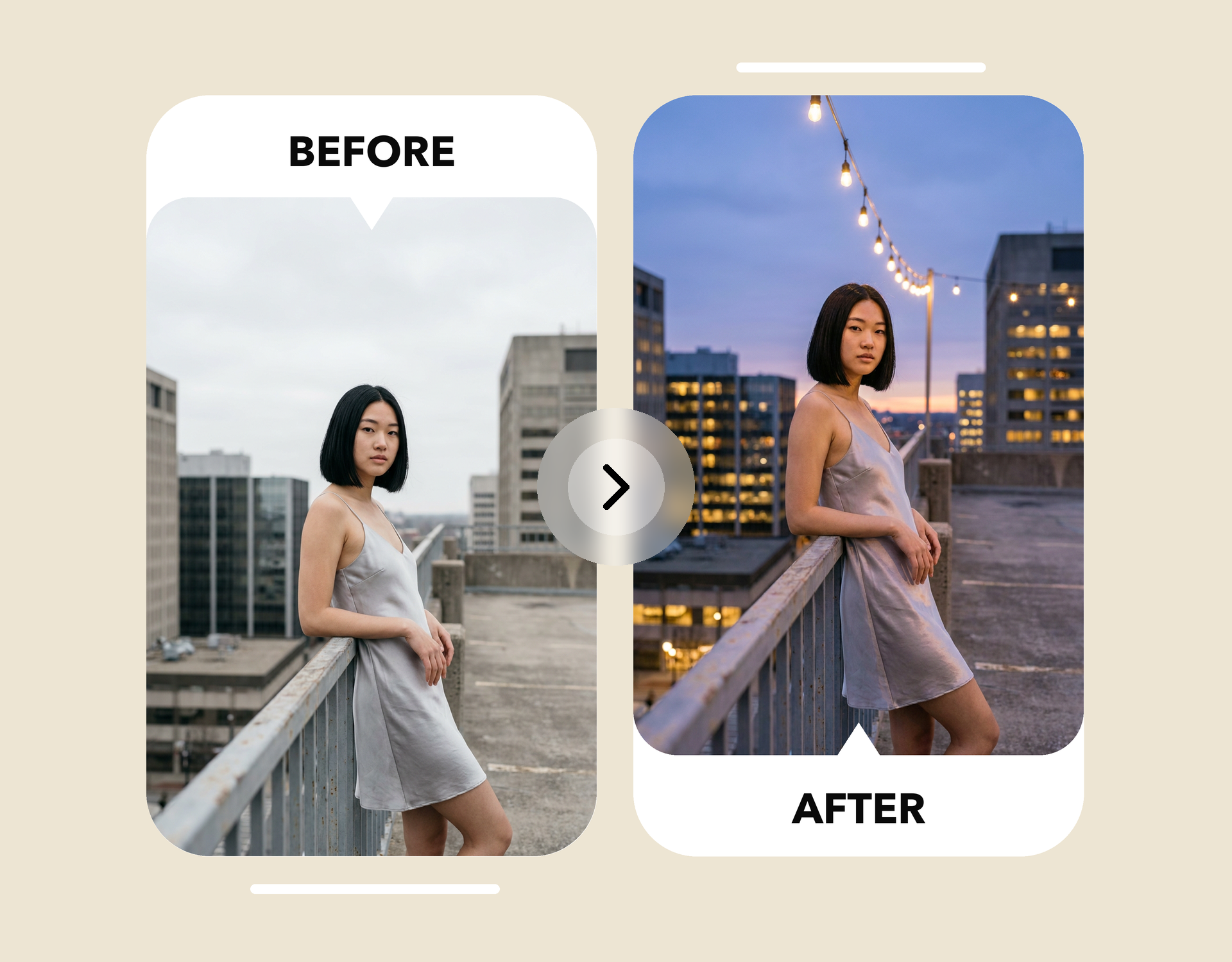
How to Write Prompts That Get the Edit Right
A clear prompt is the difference between a close-enough edit and the exact one you pictured. Follow these four habits and you’ll spend less time redoing results.
✨ Name the change first. Start with the one thing you want different, like “turn the sky to dusk” or “swap the jacket for a trench coat.” Leading with the main edit keeps the result focused.
✨ Say what should stay. Add a line such as “keep her face, pose and dress the same.” This tells the editor exactly where not to touch.
✨ Describe the light and mood. Words like “golden hour,” “soft window light” or “warm string lights overhead” do more than “make it nicer.” The rooftop edit here came from one prompt: “Change the sky to dusk, add string lights overhead and turn on the lights in the buildings. Keep her pose and outfit the same.”
✨ Add one specific detail. A material, colour or object (“camel wool,” “white marble,” “a neon sign”) gives the edit something concrete to build around.
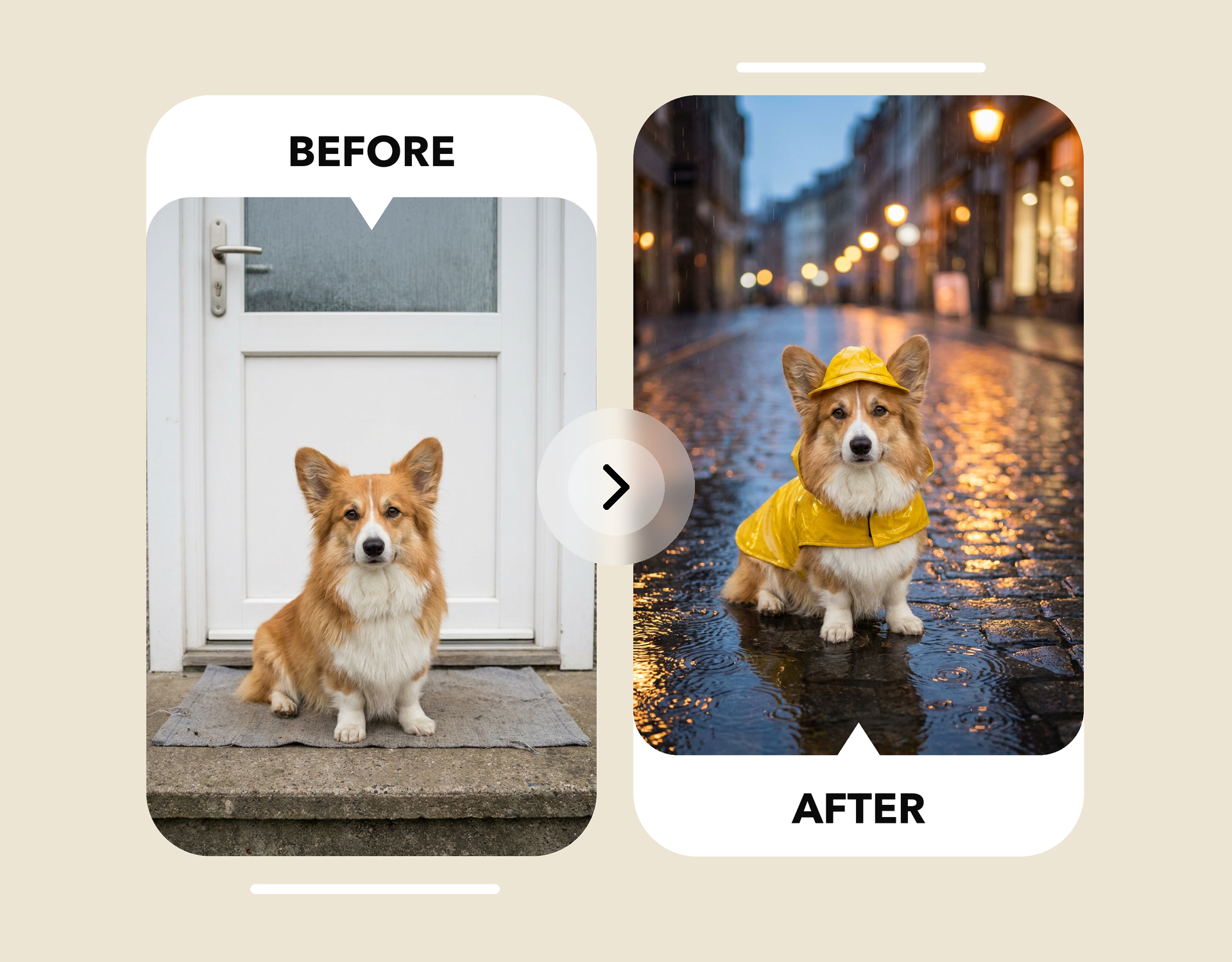
Edit Photos by Simply Describing Them
Type what you want changed in plain words, like “put him on a rainy city street at dusk and dress him in a yellow raincoat.” The imov AI image editor handles the rest. There are no masks to draw, layers to manage or selection tools to learn.
You can stack several changes into one prompt, so a new setting, an outfit and a mood shift happen in a single edit instead of five separate steps. Your subject keeps its pose, expression and features throughout.
Not quite right? Refine the result with a follow-up prompt, such as “make the street wetter” or “warm up the lights,” and keep iterating until the image matches what you had in mind.
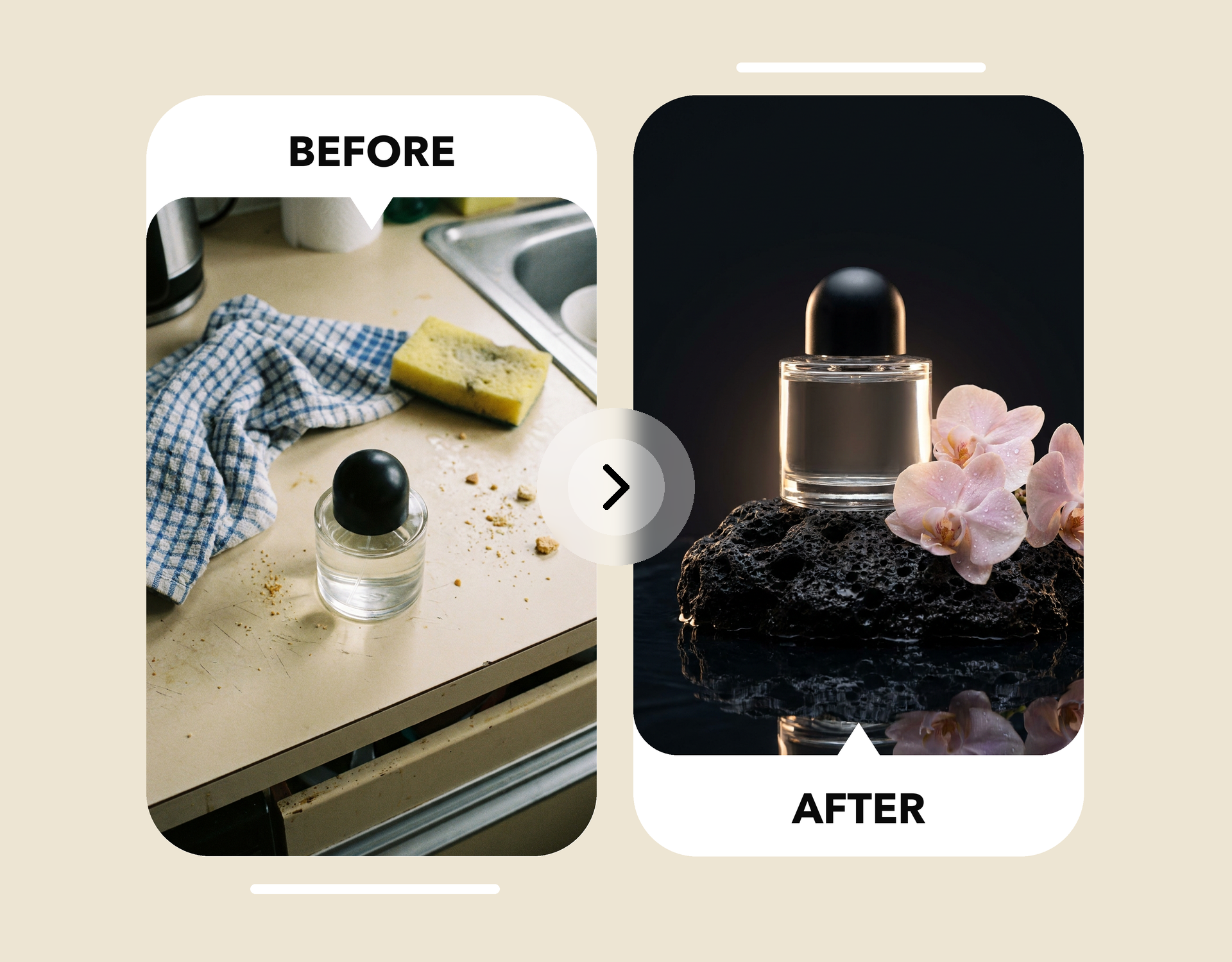
Keep Your Product Real, Change Everything Around It
The bottle in this shot was photographed next to a kitchen sink, on a counter covered in crumbs and a dish towel. One prompt replaced the setting with a dark stone surface, fresh orchids and a soft reflection, while the bottle itself stayed exactly as it was.
✨ Your subject stays accurate. The shape, label, cap and glass of your real product carry over untouched, so what customers see is what they’ll get.
✨ The scene is yours to choose. Go from cluttered to luxurious, plain to seasonal, or indoor to outdoor by describing the new surroundings and props.
✨ No photo yet? Start from scratch. If you only have an idea, create the scene or concept in the AI image generator, then bring it into the editor to refine the details.
Why Teams Use imov to Edit Pictures with AI
No design skills needed: You don't need layers, masks or brushes. Text-prompt editing means you describe the result and the AI handles the pixel work. It's built for beginners and professionals alike, so anyone on your team can make a polished edit.
Natural, consistent results: The editor keeps faces, skin tones and lighting consistent, so edits blend in instead of looking pasted on. Run several edits on the same photo and the subject still looks like the same person from start to finish.
From edit to video and workflows: An edited image doesn't have to be the finish line. Send it to the AI video generator to animate it, or chain editing steps together with AI workflows for repeat jobs like product shots, ads and seasonal campaigns.
Works in your browser on any device: The AI image editor online runs on Mac, Windows, Android and iPhone. There's nothing extra to download or install. Start an edit on your laptop, finish it on your phone and pick up right where you left off.
Is the imov AI Image Editor Free?
Yes. Every account gets 100 free credits a month, enough for about 10-15 edits with the AI photo editor free plan. Paid plans add more credits, higher resolution and full commercial rights. See every plan on the pricing page.
Choose a plan that fits your needs
Upgrade to get access to pro features and generate more and better
Kling
ByteDance
Minimax
Nano Banana
Gemini
Claude
Qwen
GPT Image
Runway
Grok
Trusted by Professionals and Creators from top Brands and Companies
Hear From Users Who Tried AI Image Editing
I’ve been using imov AI Image Editor for my personal photos, and it’s honestly so easy. I can fix colors, clean up backgrounds, or even add fun stuff just by typing a prompt. Editing images with this AI is faster than Photoshop, and it’s actually fun to play around with.
Anya Petrova
For my small business, imov AI Image Editor has been a total lifesaver. I can make social media posts, product images, and promos in minutes. This AI image editor online keeps everything looking real and professional, so I don’t have to stress about hiring a designer.
Ben Harris

I love using imov AI Image Editor as a hobby. I take my travel or pet photos and edit the images into creative AI art. Trying out different styles, like cartoon effects, while keeping the image natural, is just super satisfying.
Isabelle Kim
For work projects, imov AI Image Editor has become my go-to. Editing client photos, making marketing visuals, and cleaning up images is way faster now. The text-prompt feature alone saves me so much time compared to traditional editing tools.
Michael Chenn

FAQs About AI Image Editor
An AI image editor is a tool that changes photos from text instructions instead of manual tools like brushes and layers. You describe the edit, such as removing an object or changing a background, and the AI generates the result. imov's editor runs right in your browser.
Yes. Every account gets free credits each month, which covers a few edits, and credits reset monthly. If you need more edits, higher resolution or commercial rights, paid plans start at $20 a month. Compare every option on the pricing page before you upgrade.
You can upload JPG, PNG and WEBP files up to 30MB each. For the best results, use a sharp, well-lit image at a decent resolution. Very small or heavily compressed photos give the AI less detail to work with, so edits can look softer or less natural.
Describe one specific change and say what should stay the same. For example: "Remove the person in the background. Keep everything else unchanged." Name colours, materials and lighting when they matter. If the result is close but not quite right, adjust the wording slightly and run the prompt again.
Most edits are ready in a few seconds. Exact time depends on image size, how complex the change is and how busy the servers are at that moment. Once a result appears, you can run another edit straight away to refine it until the picture looks exactly right.
The best AI image editor follows your prompt closely, keeps faces and details intact, and fits your budget. Compare tools on free allowance, output resolution, commercial rights, model choice and privacy terms. imov suits creators who want prompt-based photo edits plus video and workflow tools in one place.
The editor blocks sexual or explicit edits of real people, any content involving minors, and deceptive edits meant to mislead people about a real person. It's built for creative, personal and commercial projects. Prompts that break these rules won't generate, and repeated attempts may lead to account restrictions.
Yes, your photos are processed securely with strict privacy policies. imov ensures your images are not shared with any third parties and are only used for the purpose of generating your edits.
Yes. If you can describe what you want in a sentence, you can use the editor. There are no layers, masks or brushes to learn. Start with a quick prompt chip like "Remove object" or "Change background", check the result and adjust your prompt from there.
For many everyday edits, yes. Removing objects, swapping backgrounds and fixing lighting take one prompt instead of several manual steps. For pixel-precise retouching, print layouts or complex compositing, Photoshop still gives more manual control. Many creators use both: AI for speed and Photoshop for final polish.