Bonito Bonito AI

Give your photo a little cafecito dance

Make a Bonito Bonito dance from a photo. The scene starts with a pretend sip, moves to hands by the cheeks, and ends with a self-hug.
Input
One photo of a person or pet
Default video
15 seconds · 720p · 9:16
Make it yours15s / 9:16 · 720P

Use a clear, front-facing photo with room for the shoulders, elbows and hands. A kitchen counter, tabletop or plain wall can give the gesture a simple backdrop. Avoid a crop through the wrists if the pose begins with the hands close to the body. For the pet preset, use a sharp photo with a clear view of the front paws.
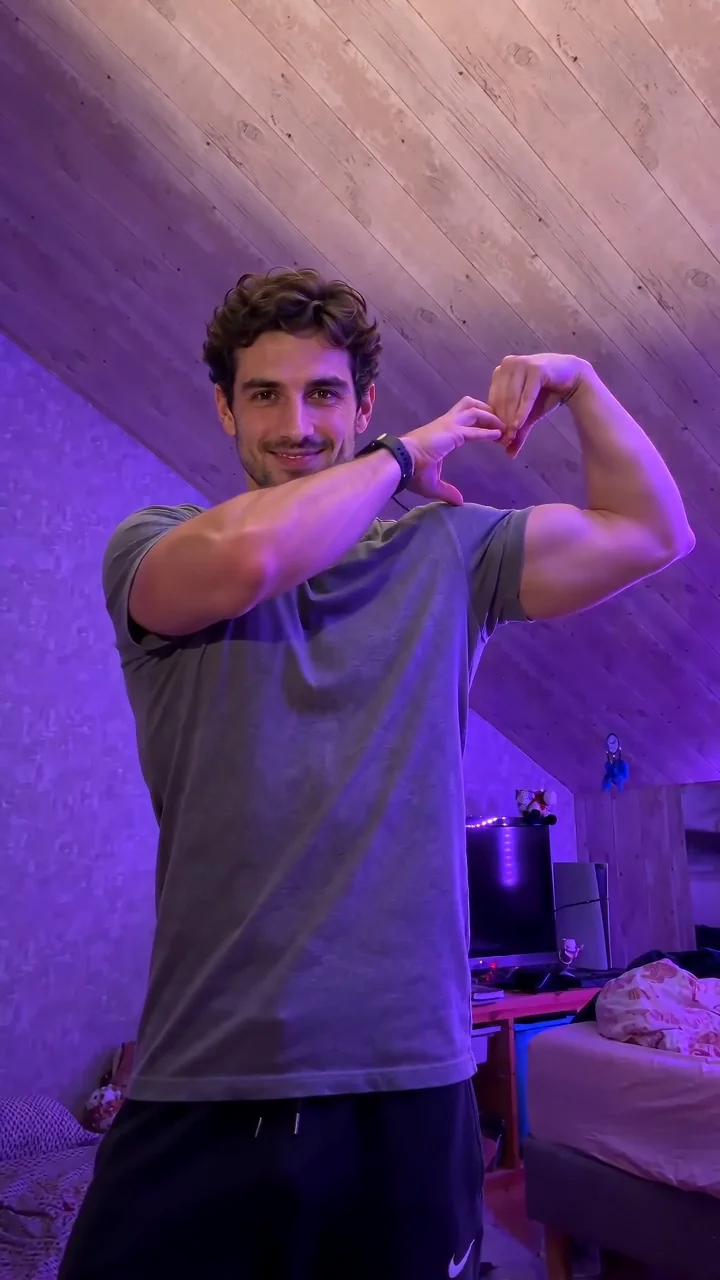
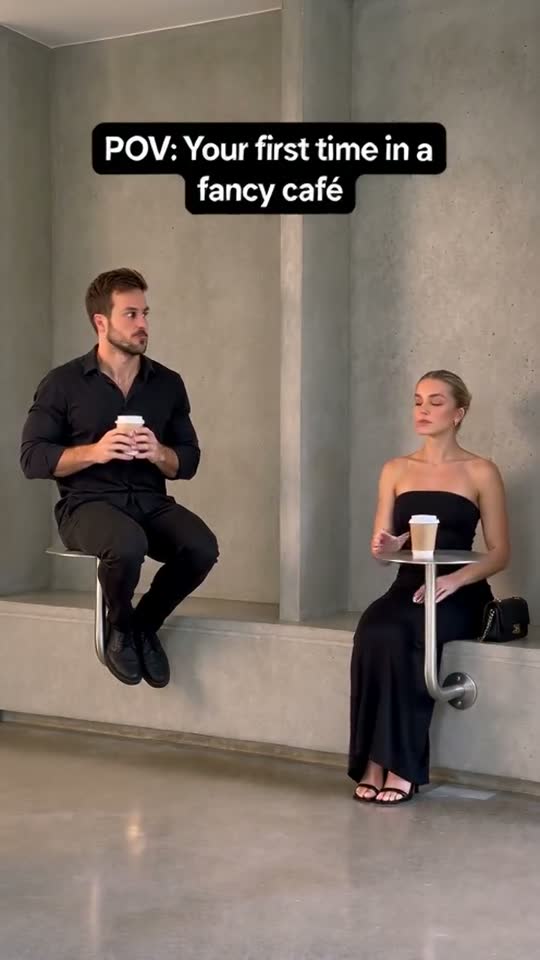
Choose your scene
Settings & instructions

Model: Seedance 2.5

Choose the length and resolution before you generate. The button shows the current Pixany credit cost.

Private generationPricing
Scene plan
Classic cafecito15s / 9:16

Choose one of seven scenes, then pick the frame and resolution. The model creates a new performance from the photo.

A planned scene for your upload. Your finished video appears in My Creations.

External samples and context

Pause once at the sip, once at the cheek pose and once at the hug. Check whether the cup is only mimed, both hands stay outside the face and the arms cross cleanly. If one beat gets lost, hold the camera steady and shorten the motion directions for that beat.

Open the reference site

From photo to idea

How to make the Bonito Bonito cafecito dance

First, start with a front-facing photo and choose a preset. The classic setting gives the imaginary cup gesture an uncluttered background. The cardigan and pink-bow settings give the outfit more emphasis, and the pet option uses a paw motion. Next, keep the scene direction focused on three beats. Lift an imaginary cup toward the mouth, bring the hands beside the cheeks, then cross the arms for a self-hug. A usable starting prompt is “A steady waist-up shot in a bright kitchen. The subject takes one pretend sip, opens both hands beside their cheeks and finishes with a gentle self-hug. Keep the face visible and use a steady camera.” The framing gives the hands room, the action order makes each beat easy to review, and the simple camera direction keeps the cut from interrupting the motion. Finally, preview the whole clip and decide whether the gesture or the setting needs one more pass. Use the original reference link above to see how the sip and hug read before choosing your own framing.

Start with a clear reference

Use a clear, front-facing photo with room for the shoulders, elbows and hands. A kitchen counter, tabletop or plain wall can give the gesture a simple backdrop. Avoid a crop through the wrists if the pose begins with the hands close to the body. For the pet preset, use a sharp photo with a clear view of the front paws.

Choose what to create

Choose one of seven scenes, then pick the frame and resolution. The model creates a new performance from the photo.

Keep the details that matter

Pause once at the sip, once at the cheek pose and once at the hug. Check whether the cup is only mimed, both hands stay outside the face and the arms cross cleanly. If one beat gets lost, hold the camera steady and shorten the motion directions for that beat.

Bonito Bonito AI

A few things to know.

Visit the help center
Which scene should I try first?

Try the classic scene to check whether a photo works before spending time on styling. Use the cardigan with a warm porch setup, or the pink bow against a hallway where the color reads clearly. Keep the same photo and motion brief if you compare both. In a vertical export, leave space above the head and below the elbows. The cheeks and wrists should stay visible even when a social app crops the cover image.

Can I use a pet photo?

Yes. Pick the pet scene and choose a photo that shows the head and front paws from the front. Describe one little sway or raised paw so the action suits the animal’s pose. Use a simple angle and check that the markings and paws look consistent throughout. A photo taken from above can hide the leg positions and make the result harder to review.

Does the clip include the trend recording?

The sound setting lets you request generated audio or a silent clip. For an edit timed to a particular recording, export a silent version and add the audio in your editor if you have permission. Mark the sip, cheek pose and hug on the timeline before trimming. That lets you cut around the three movements without speeding through the ending. Review the final audio and video together before sharing.

How much does a render cost?

The current quote is shown on the Create button. Your Pixany balance and checkout are shared with the other tools. Pricing

My creations

Recent Creations

No recent creations yet

No results yet. Start a task in a creative tool; your saved results will appear here.